Drive AI
Open the Drive AI panel to ask questions about your files and let the assistant organize them, with your approval.
Drive AI is a chat panel beside your files. You can ask it about the files in a drive, and ask it to make changes for you. This page covers how to open it from Drive. For how chats, approvals and AI settings work in general, see Assistant.
Open Drive AI
Click the Drive AI button (the robot icon) at the right end of the toolbar, or press d then a. Do the same again to close it.
The panel is titled Drive AI. Below the title it says This drive, or All drives when you open it from All drives.
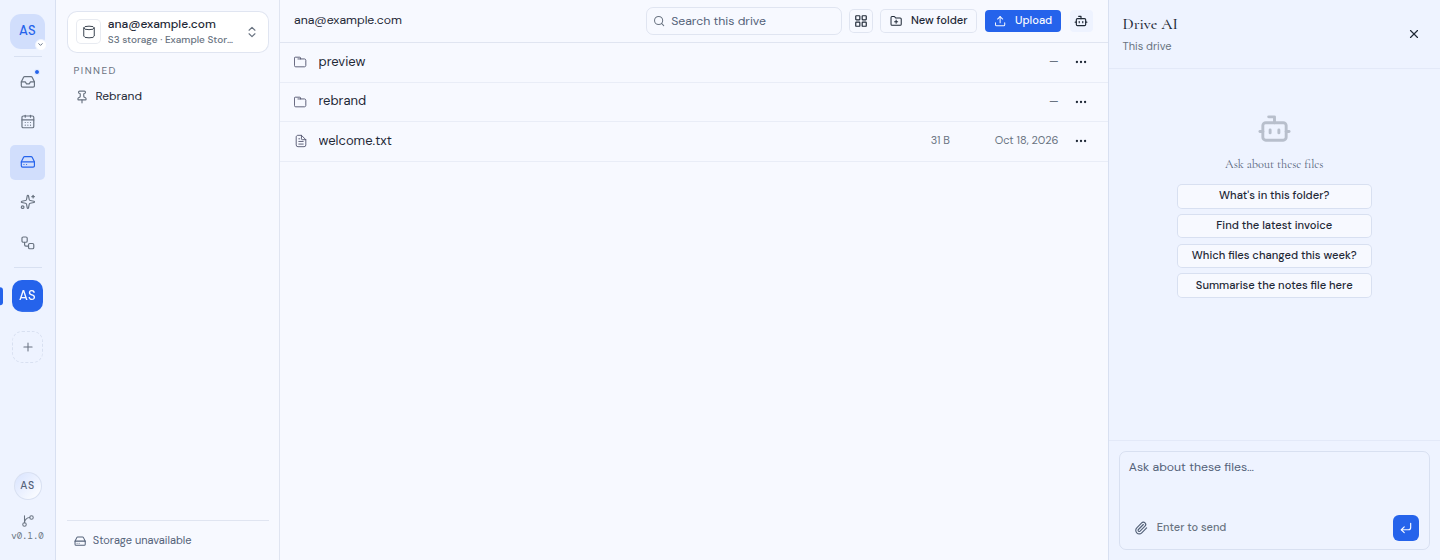
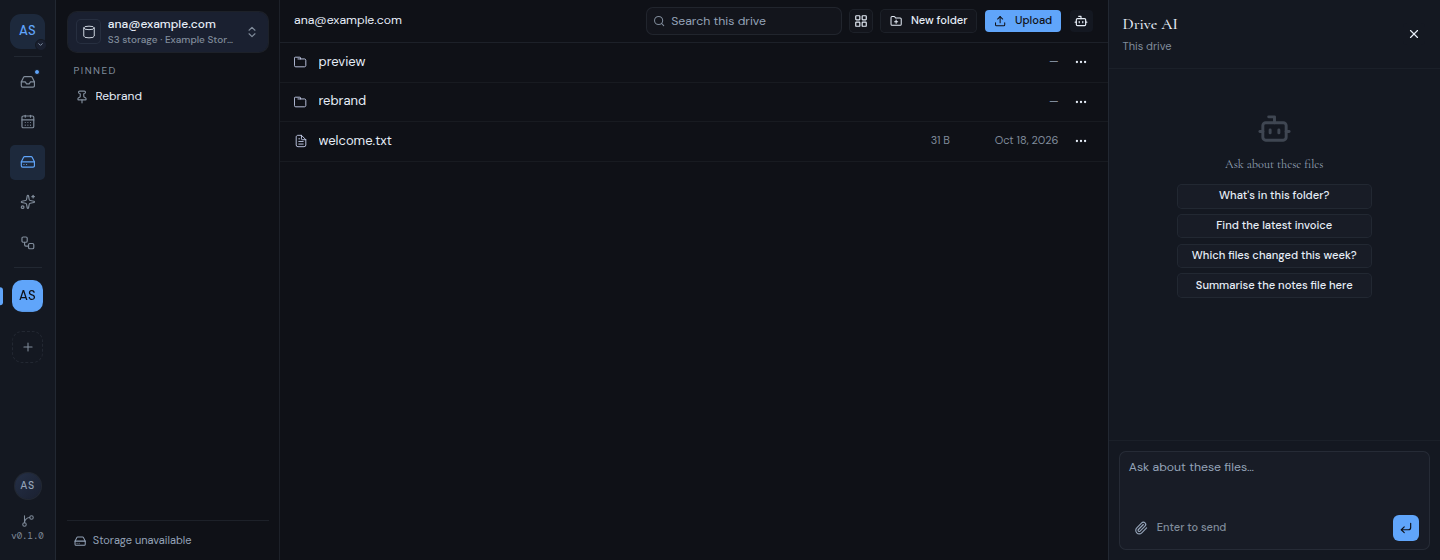
If you do not see the button, AI is turned off for your Metis instance.
Ask a question
A new chat says “Ask about these files” and offers suggestions such as “What’s in this folder?” and “Find the latest invoice”. Click one, or type your own question in the box (“Ask about these files…”) and press Enter.
To point the assistant at a specific file, use Attach a file in the message box. It lists the files and folders in the folder you have open. When the folder is empty, the button is turned off.
If something goes wrong, the panel says “Drive AI hit a problem” with a Retry button.
What it can do
Drive AI can list and search your files and read text files. It can also create folders, rename, move and delete items. Before it changes anything, it asks you to approve the change.
The file list has no move action, so ask Drive AI when you want a file in another folder. It can move files within one drive. It cannot move a file from one drive to another.
When Drive AI is turned off
AI is off for each drive until someone turns it on. The person who connected the drive can turn it on in the workspace’s drive settings. Metis asks for a code from their authenticator app first. See Workspaces.
While AI is off, the panel says “Assistant turned off”, then the reason and a button:
- “This workspace has AI turned off, so the assistant is unavailable here.” The button is Workspace settings.
- “AI is turned off for this drive, so the assistant has nothing it can read.” The button is Your drives.
Your drives opens your account’s list of drives. To turn AI on, use the workspace’s Drives settings.