Manage your connected accounts
See every account you have connected, choose which workspaces use each one, and disconnect or delete them.
Your account settings list everything you have connected, across all your workspaces. Open them from the account menu at the bottom of the left rail: Connections, Mailboxes, Calendars or Drives. You see only the accounts you connected yourself.
Connections
The Connections page lists “The accounts you’ve connected, and what you use each one for.” Each row shows the account’s email address, its provider and, for a server, the server’s name.
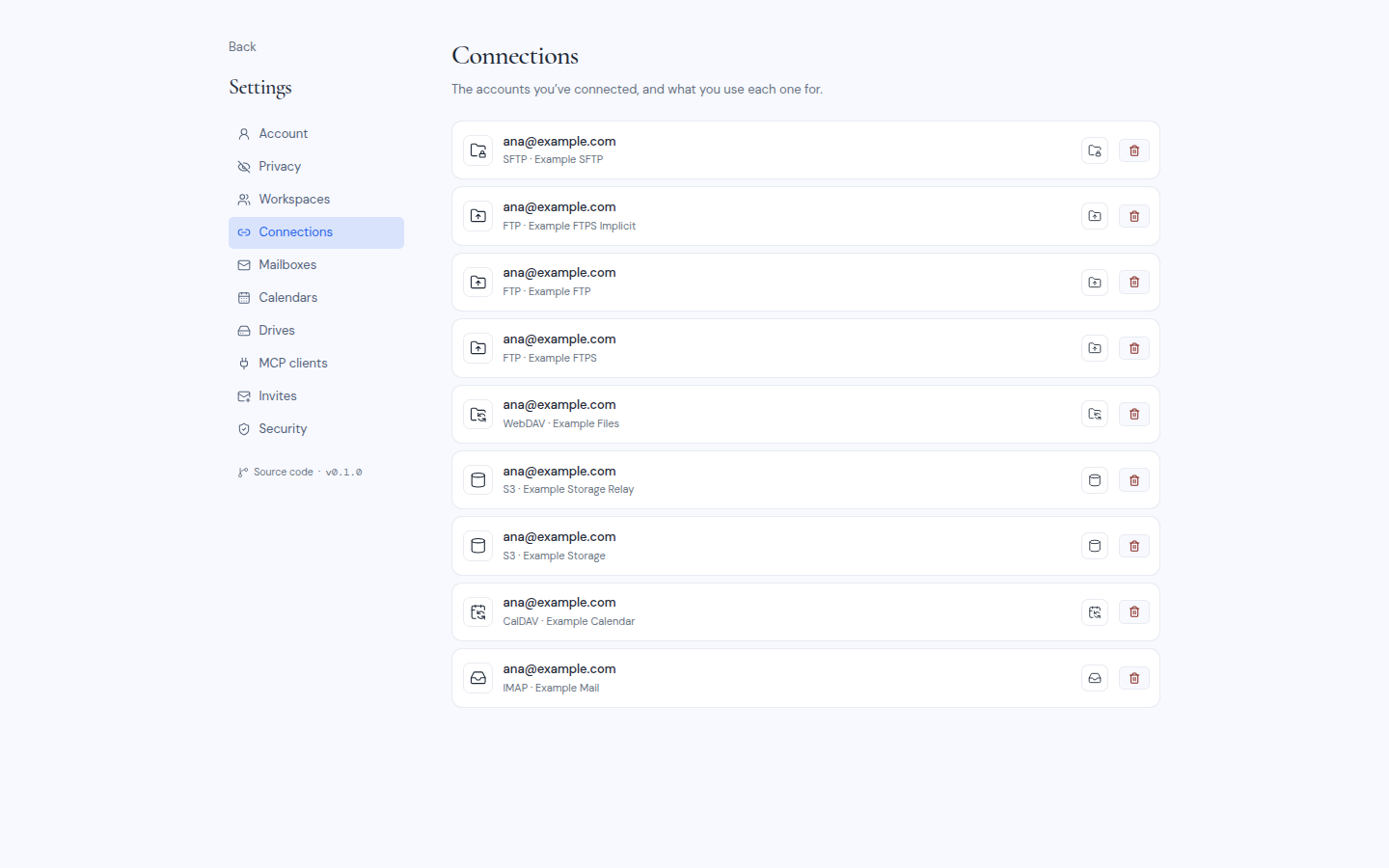
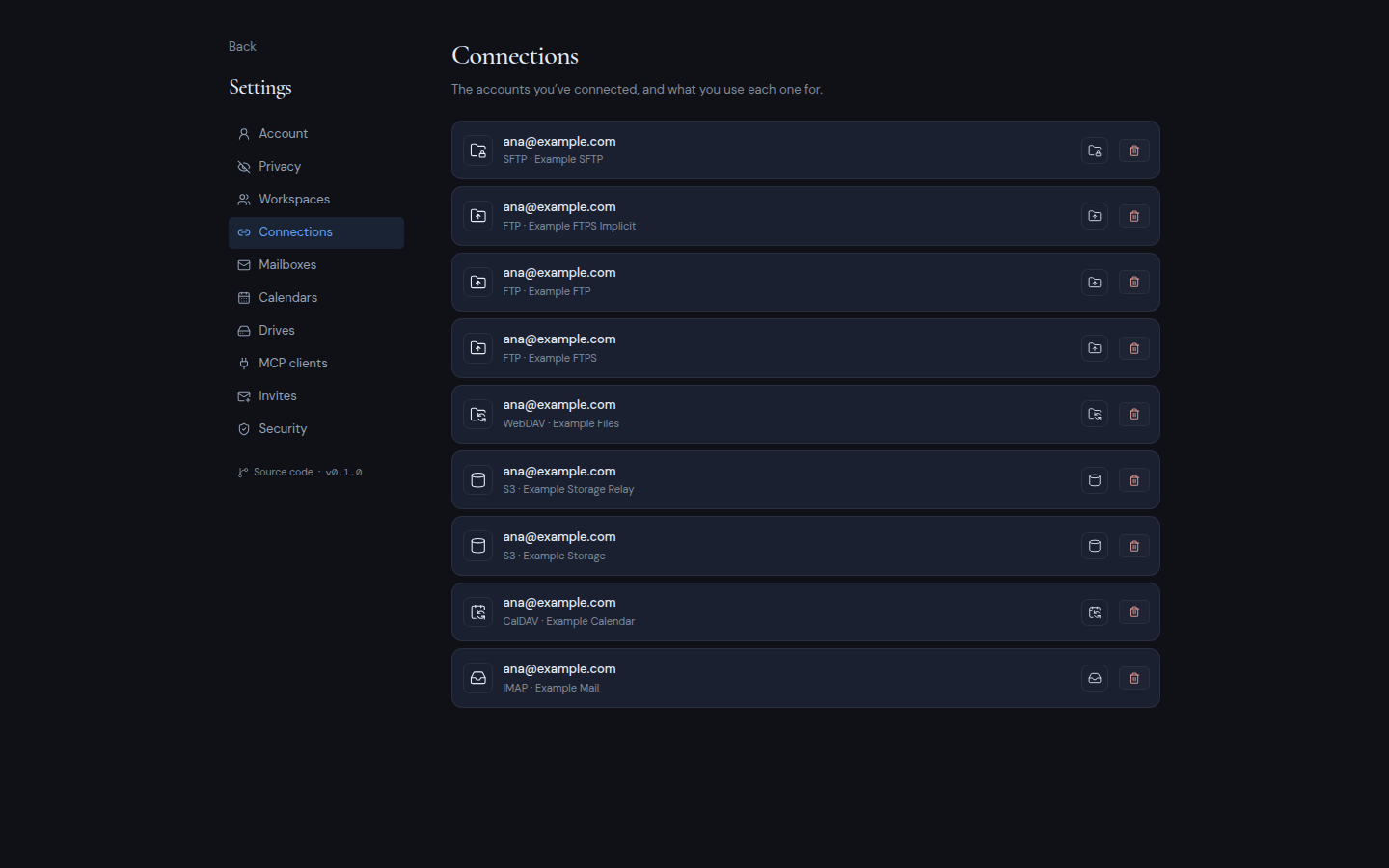
Next to each account, icons for what it supports (Mail, Calendar, Drive) show what you use it for. A server account shows one icon. Google and Microsoft accounts can show all three, and Zoho accounts show Mail and Calendar. Hover over an icon to see what it means:
- “Mail is set up on this account”: you use it for mail already.
- “Set up mail on this account” or “Add mail to this account”: you do not use it for mail yet. Click the dashed icon to add it. Metis Suite sends you to the provider’s sign-in with this account already chosen.
If you pick a different account at the provider, Metis Suite connects that one as a separate account and tells you so: “Connected … You started from …, so this is a separate account.” Click the X to dismiss the notice.
Disconnect an account
Disconnecting removes the account from Metis Suite completely.
- Click the trash icon on the account’s row (Disconnect and the email address).
- Read the dialog and click Disconnect account.
The account’s mailbox, calendar and drive leave every workspace, and Metis Suite loses access to the account. Your messages, events and files stay exactly where they are at the provider.
Mailboxes, Calendars and Drives
These pages list every mailbox, calendar account or drive connected to your account, and which workspaces use each one.
See and change where a resource is used
Click In 1 workspace (or In 2 workspaces, and so on) on a row. The button is greyed out when the resource is in no workspace.
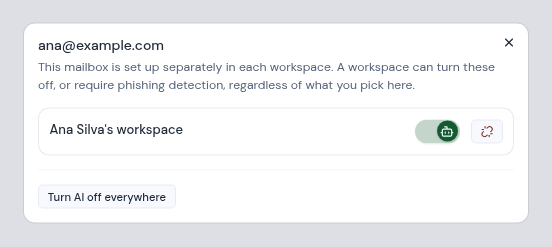
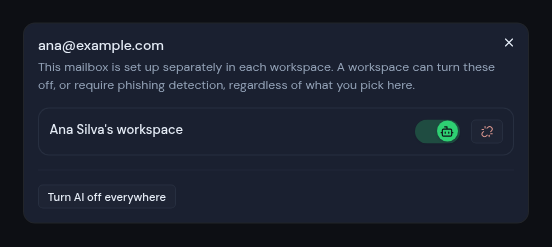
The dialog lists each workspace that uses the resource, with its own switches:
- The robot icon (AI) and, for a mailbox, the shield icon (phishing detection): click them to turn these on or off for that workspace. Turning one on asks for your authenticator code. These icons appear only when your instance has AI or phishing detection set up.
- Turn AI on everywhere or Turn AI off everywhere, and Turn detection on everywhere or Turn detection off everywhere: change every workspace at once. These buttons also appear only when your instance has that feature set up.
- The unlink icon (Remove from and the workspace’s name): take the resource out of that workspace. A dialog asks you to confirm removing the address from that workspace; click Remove. It keeps working in your other workspaces.
A workspace can turn these off, or require phishing detection, whatever you pick here. See AI and privacy settings.
Delete a mailbox, calendar or drive
- Click the trash icon on the row (Delete, Delete calendar for or Delete drive for, then the email address).
- Read the dialog, then click Delete mailbox, Remove calendar or Remove.
What happens:
- It leaves every workspace.
- The account stays connected if you still use it for something else. For example, if you delete a Google mailbox but still use that Google account’s calendar, the account stays connected for the calendar. Once nothing on the account is left, Metis Suite disconnects it completely.
- Nothing changes at the provider. For a mailbox, the copies Metis Suite stored (such as labels and summaries) are deleted, but your real mail is untouched. Your events and files are untouched too.
Outlook accounts: finish at Microsoft
Microsoft does not let Metis Suite remove its own access from outside. When you disconnect an Outlook account or delete an Outlook mailbox, also remove Metis Suite from your Microsoft account:
- for a personal Microsoft account, at account.microsoft.com/privacy/app-access;
- for a work or school account, at myapps.microsoft.com.
The dialogs show these same two links.