View, edit and delete events
Open an event to see its details, change it, delete it, or answer an invitation.
Click any event in the Day, Week, Month or Schedule view to open its details.
See an event’s details
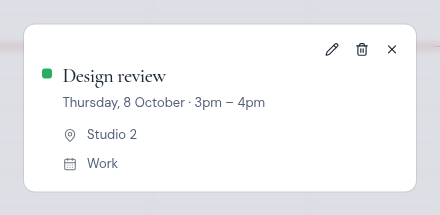

The details show:
- the event’s color, its title, and its date and time, such as “Thursday, 8 October”;
- “Repeats”, if the event is part of a repeating series;
- Join the meeting, if the event has an online meeting link;
- the location;
- the number of guests and up to eight of their names. A check mark shows who has accepted;
- the description;
- the calendar the event belongs to.
The buttons at the top right are Edit event (pencil), Delete event (bin) and Close (X).
Edit an event
-
Open the event.
-
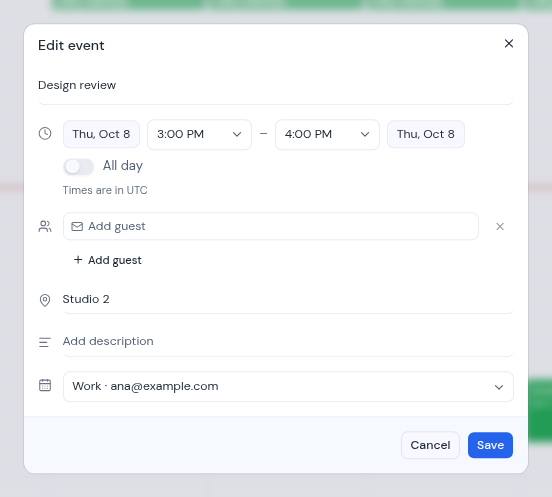
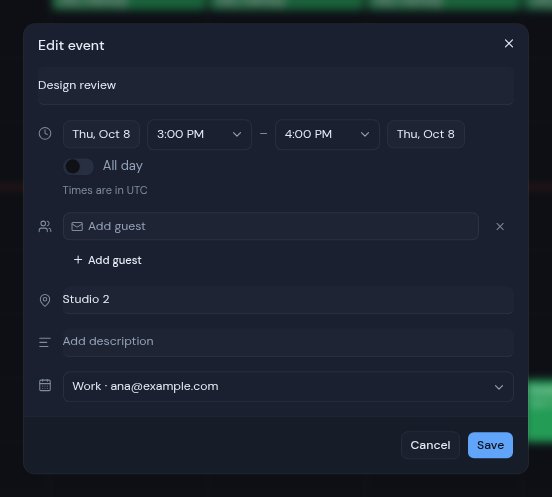
Click Edit event. The Edit event dialog opens with the event’s details filled in.
-
Change what you need. The fields are the same as when you create an event, except that you cannot add a Google Meet or Teams meeting while editing.
-
Click Save.
To change only the time or day, you can also drag the event in Day or Week view.
Repeating events
For Google and Microsoft calendars, each occurrence of a repeating event is its own item in Metis Suite. When you edit, move or delete one occurrence, only that occurrence changes.
Delete an event
-
Open the event.
-
Click Delete event.
-
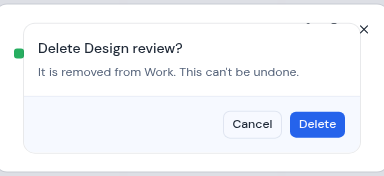
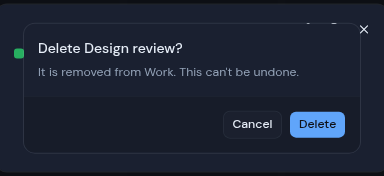
Metis Suite asks “Delete <event title>?” and says that this can’t be undone.
-
Click Delete to delete the event, or Cancel to keep it.
The calendar then refreshes. Check that the event is gone.
Answer an invitation
When an event has guests, the bottom of its details shows “Going?” with three buttons: Yes, No and Maybe.
- Open the event.
- Click Yes, No or Maybe. Your answer is highlighted.
If your answer cannot be sent, a message such as “Could not send your response” appears. Try again.
What happens next depends on your provider. Google Calendar sends your answer to the other guests. On a CalDAV calendar, your answer changes only your own copy of the event, and no message is sent. Other providers follow their own rules.