Create, rename and delete
Make new folders, rename files and folders, and know when a deleted item can be restored.
These actions change your files at the provider, so the change shows everywhere you use that drive.
Create a folder
- Open the folder where the new folder should go.
- Click New folder in the toolbar, or press d then n.
- In the New folder dialog, type a name in Name.
- Click Create, or press Enter.
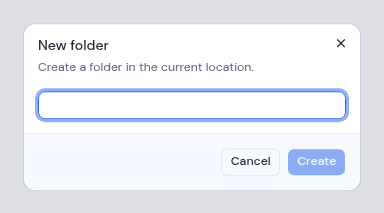
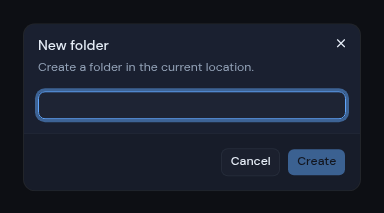
If the folder cannot be made, you see “Could not create that folder”.
Rename a file or folder
- Click the … button on the item, or right-click it.
- Choose Rename.
- The Rename dialog shows the current name. Change it.
- Click Rename.
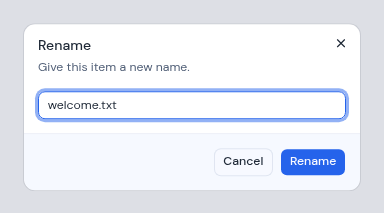
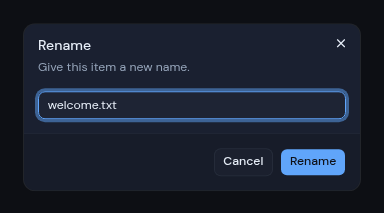
If the rename fails, you see “Could not rename that item”.
Delete a file or folder
- Click the … button on the item, or right-click it.
- Choose Delete.
- Read the message in the dialog, then click Delete, or Cancel to keep the item.
What happens next depends on the drive type:
| Drive type | What Delete does | The dialog says |
|---|---|---|
| Google Drive, OneDrive | Moves the item to the trash of the connected account. You can restore it there. | “It moves to the trash of the connected account, where it can still be restored.” |
| S3 storage, WebDAV, FTP, FTPS, SFTP | Deletes the item for good. | “It is deleted permanently. This can’t be undone.” |
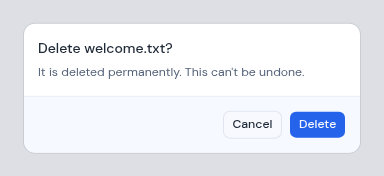
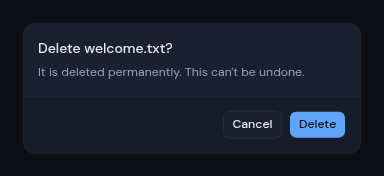
If you delete the file that is open in the preview pane, the preview closes. If the delete fails, you see “Could not delete that item”.
Moving files
The file list has no move action. To move a file to another folder in the same drive, ask Drive AI. Files cannot be moved from one drive to another.