All drives
See every drive in the workspace in one view, and upload or create folders from there.
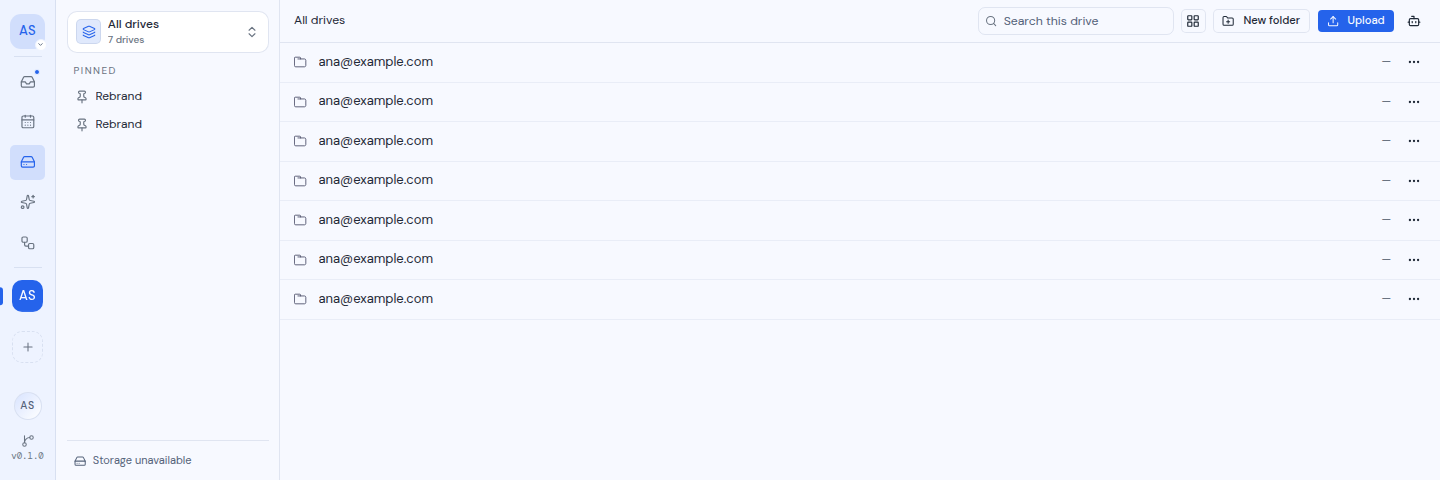
All drives puts every drive in the workspace into one view. It is useful when your workspace has several drives and you do not remember which one holds a file.
Open All drives
Click the drive switcher at the top of the sidebar and choose All drives. The option shows only when the workspace has more than one drive. While you are in All drives, the switcher shows All drives and the number of drives.
What you see
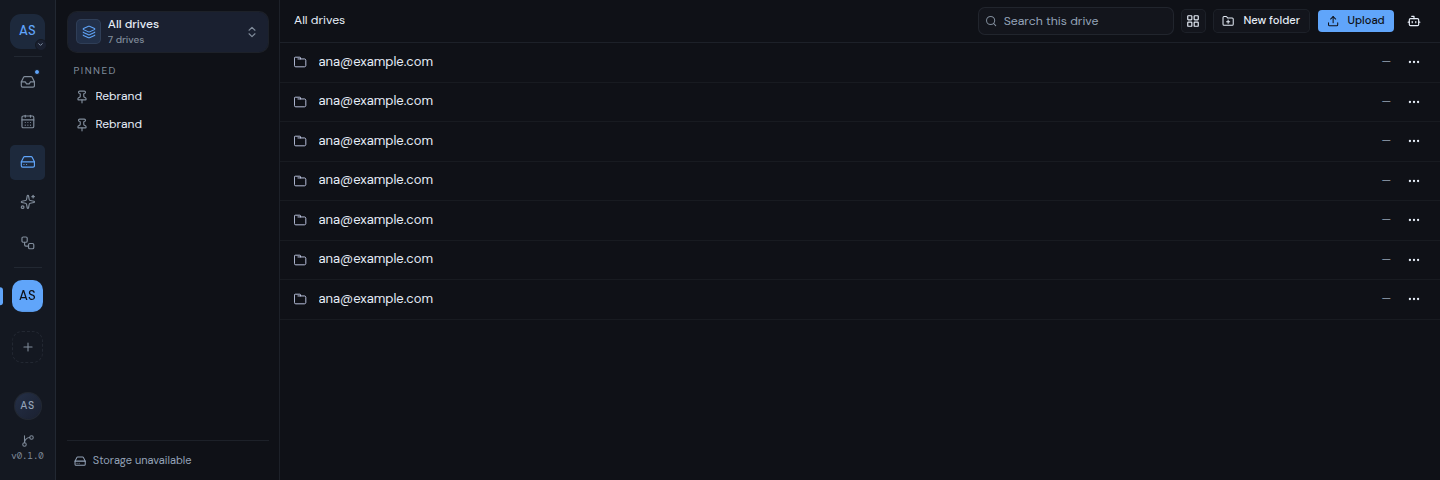
- At the top level, each drive appears as one folder, named with the email address of its account.
- Inside one of those folders, you work in that drive just as you would on its own page.
- The breadcrumbs start with All drives. Click it to return to the top level.
- The search box searches every drive at once. See Search.
- The storage line in the sidebar says “Storage unavailable”. Open a single drive to see its storage use.
Upload or create a folder from the top level
At the top level there is no folder to put things in yet, so Metis asks you where they should go.
- Click Upload and choose your files, or click New folder.
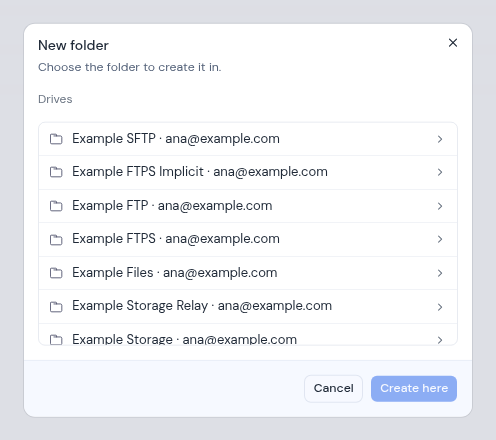
- A dialog opens and asks where to put them:
- For an upload, the dialog is titled Upload. It names your file (or the number of files) and asks which folder to upload into.
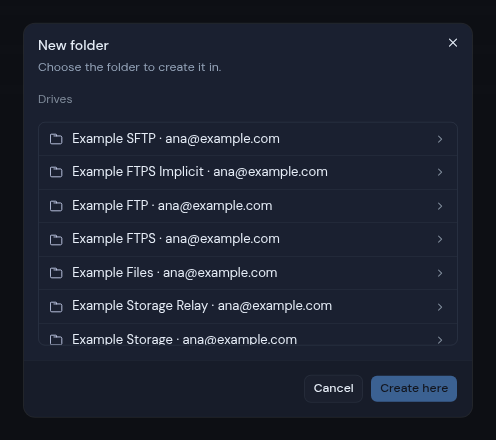
- For a new folder, the dialog is titled New folder. It says “Choose the folder to create it in.”
- The dialog starts at Drives, which lists each drive by its type or server name and its email address. Click a drive to open it, then click folders to go deeper. Use the path at the top of the dialog to go back.
- Click Upload here or Create here. The button stays off until you have opened a drive.
- For a new folder, type its name in the next dialog and click Create.
If the dialog cannot read your drives, it says “Could not read your drives”. A drive or folder with nothing in it shows “Nothing here”.
Inside a drive’s folder, Upload and New folder work directly on the folder you are in, as they do on the drive’s own page.