Keyboard shortcuts
Every keyboard shortcut in mail, calendar and drive, and the shortcut for switching workspaces.
Mail, calendar and drive each have their own shortcuts. Most of them are two keys pressed one after the other: a prefix letter for the section, then a second key.
How shortcuts work
- Press the prefix, then the key. Press m in mail, c in calendar or d in drive, then press the second key within about 1.5 seconds. For example, m then i opens the inbox. While the prefix is active, a hint shows the keys you can press.
- A wrong second key does nothing. If you press the prefix and then a key with no shortcut, nothing happens.
- Mail, calendar and drive shortcuts pause while you type. They do nothing while you are typing in a field, such as a search box or the message editor. Switching workspaces with Alt and a number still works.
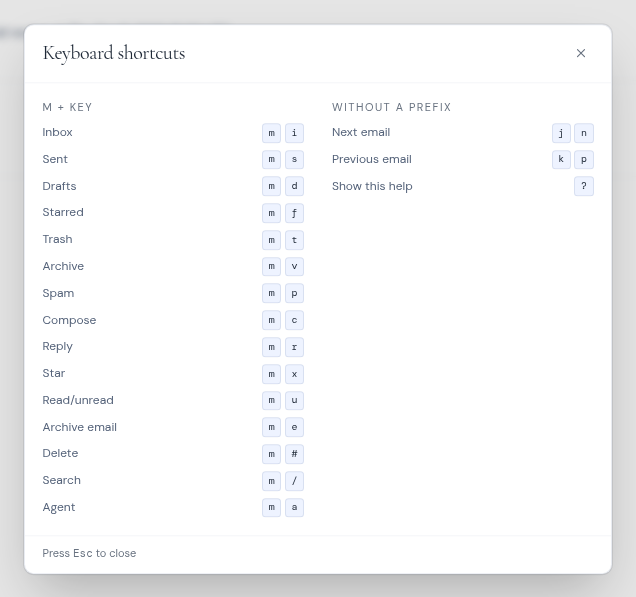
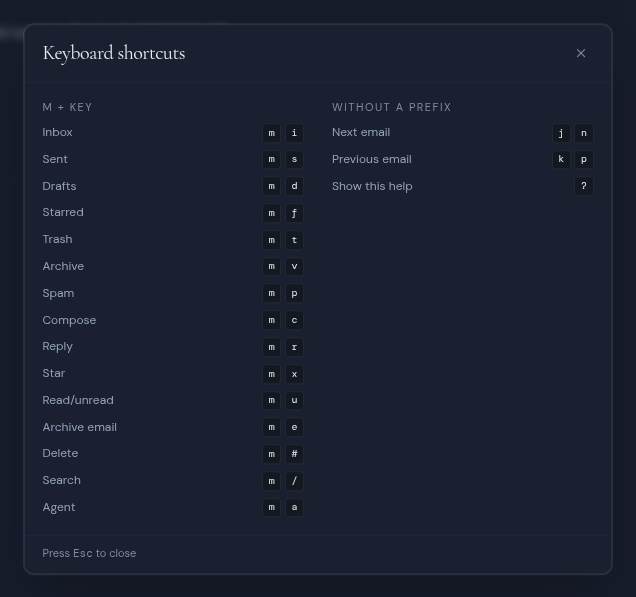
- Press ? for help. In mail, calendar and drive, ? shows or hides the Keyboard shortcuts dialog for that section. Press Esc or click Close to close it.
- There is no command palette. Use the shortcuts below, or the buttons on screen.
Everywhere
| Keys | Action |
|---|---|
| Alt + 1 to 9 (Option on a Mac) | Switch to the 1st to 9th workspace, in the order of the left rail |
Switching workspaces works on any page and with any keyboard layout. It does nothing if you also hold Ctrl, Cmd or Shift. The help dialog has a list of workspaces only when you belong to more than one. It lists only your first five, but Alt with 6 to 9 works too.
Press m, then:
| Keys | Action |
|---|---|
| m then i | Go to Inbox |
| m then s | Go to Sent |
| m then d | Go to Drafts |
| m then f | Go to Starred |
| m then t | Go to Trash |
| m then v | Go to Archive |
| m then p | Go to Spam |
| m then c | Compose a new message |
| m then r | When a message is open, opens a new blank message. It does not fill in a reply. To reply, use the Reply button on the message. |
| m then x | Star or unstar the open message |
| m then u | Mark the open message read or unread |
| m then e | Archive the open message |
| m then # | Delete the open message, without asking first. Most mailboxes move it to Trash; Cloudflare Email and Resend mailboxes, and messages already in Trash on a mail server, are deleted for good. |
| m then / | Jump to the search box |
| m then a | Open or close the Mail AI panel |
Without a prefix:
| Keys | Action |
|---|---|
| j or n | Open the next message in the list, and mark it read |
| k or p | Open the previous message in the list |
| Esc | Close the message editor, or the help dialog |
Calendar
Press c, then:
| Keys | Action |
|---|---|
| c then d | Day view |
| c then w | Week view |
| c then m | Month view |
| c then y | Year view |
| c then s | Schedule view |
| c then t | Go to today |
| c then n | New event, starting at the next full hour |
| c then r | Refresh the calendar |
| c then a | Open or close the Calendar AI panel |
Without a prefix:
| Keys | Action |
|---|---|
| j or n | Next day, week, month or year, depending on the view |
| k or p | Previous day, week, month or year |
Drive
Press d, then:
| Keys | Action |
|---|---|
| d then n | New folder |
| d then u | Upload files |
| d then s | Jump to the search box |
| d then l | List view |
| d then g | Grid view |
| d then r | Go to the top of the drive |
| d then h | Go to All drives |
| d then p | Preview the selected file |
| d then a | Open or close the Drive AI panel |
Without a prefix:
| Keys | Action |
|---|---|
| j or n | Go forward to the next folder in your history |
| k or p | Go back to the previous folder in your history |
In drive, j and k move through the folders you have visited, like a browser’s back and forward buttons. They do not move a selection. Your history is kept when you switch between drives.