Connect an account
Connect a mailbox, calendar account or drive by signing in with your provider or by entering your login for a server.
Connecting an account gives Metis Suite access to your mailbox, calendar account or drive. You can connect from a workspace, which adds the account to that workspace straight away, or from your account settings, which adds it to no workspace yet.
Connect from a workspace
-
Open the workspace menu at the top of the left rail and choose Mailboxes, Calendars or Drives.
-
Click Add mailbox, Add calendar or Add drive.
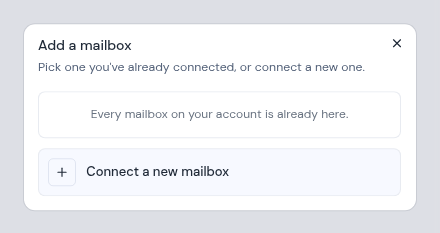
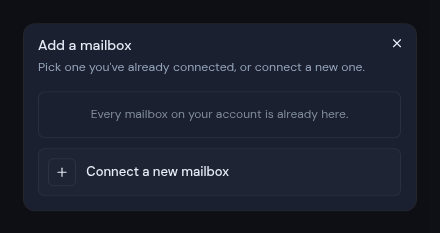
The dialog lists the accounts you have already connected that are not in this workspace yet. Click one to add it, and you are done. If all of yours are already here, it says so, for example “Every mailbox on your account is already here.”
-
To connect a new account, click Connect a new mailbox (or Connect a new account for a calendar or drive).
-
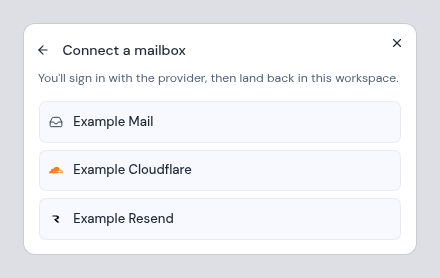
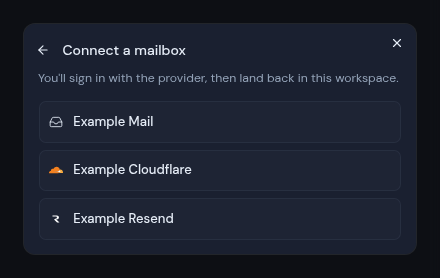
Pick your provider or server from the list.
-
Sign in at your provider, or fill in the login form. See the sections below.
If the workspace has AI turned off, or requires or turns off phishing detection, a note at the top of the dialog tells you. Anything you add follows the workspace’s rule, whatever it is set to in your other workspaces.
Connect from your account settings
- Open the account menu at the bottom of the left rail and choose Mailboxes, Calendars or Drives.
- Click Connect mailbox, Connect calendar or Connect drive.
- Pick your provider or server, then sign in or fill in the login form.
It is added to your Metis Suite account only, not to any workspace. You choose which workspaces use it afterwards. See Add, share and remove resources.
Which providers you can pick
You see only the providers and servers your instance owner has set up. You cannot type in a server address yourself. If the one you need is missing, ask your instance owner to add it.
| You are connecting | Sign in with your provider | Fill in a login form (the button shows the server’s name) |
|---|---|---|
| A mailbox | Gmail, Outlook, Zoho Mail | IMAP mail servers, Cloudflare Email, Resend |
| A calendar account | Google Calendar, Outlook Calendar, Zoho Calendar | CalDAV calendar servers |
| A drive | Google Drive, OneDrive | S3 storage, WebDAV, FTP, SFTP |
For what each provider supports, see Supported providers.
Sign in with Google, Microsoft or Zoho
When you pick Gmail, Outlook, Zoho Mail or one of the matching calendar or drive providers, Metis Suite sends you to the provider’s own sign-in page. Sign in there and allow access. Finish within 10 minutes, or start again.
When you come back:
- A mailbox added from a workspace opens in that workspace’s inbox, already added.
- A calendar account or drive added from a workspace opens that workspace’s Calendars or Drives settings, already added.
- From your account settings, you return to the same settings page. The account is not in any workspace yet.
A new calendar account shows no calendars at first. Choose which ones the workspace shows, as described in Choose which calendars a workspace shows.
One provider account is one connection. If you already use a Google account for mail and later add its calendar, Metis Suite adds the calendar to the same connection.
Fill in the login form
When you pick a server, Metis Suite shows “Enter your login for this server. It is verified before anything is saved.” The box at the top shows the server’s name. Click the back arrow (Back) to pick a different one.
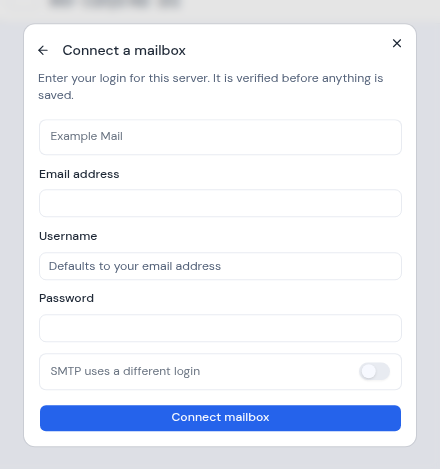
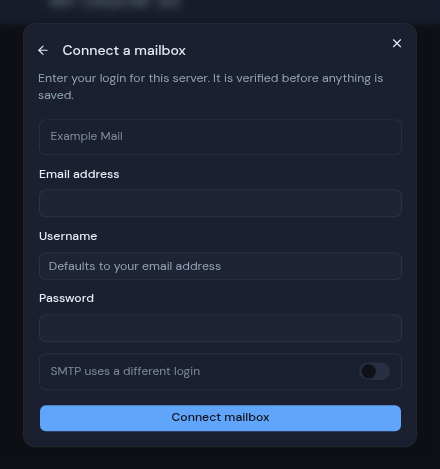
Every form asks for your Email address. The other fields depend on the kind of server:
| Server | Fields |
|---|---|
| IMAP mail server | Username (if you leave it empty, your email address is used) and Password. Turn on SMTP uses a different login if your outgoing mail needs its own login, then fill in SMTP username and SMTP password. |
| CalDAV calendar server | Username (your email address if left empty) and Password. |
| WebDAV, FTP or SFTP | Username (your email address if left empty), Password, and an optional Folder. A folder limits this connection to that one folder. |
| S3 storage | Bucket, and an optional Folder prefix that limits this connection to one folder. |
| Cloudflare Email or Resend | Mailbox token. Your server operator creates this token for your address and gives it to you. |
Click Connect mailbox, Connect calendar or Connect drive. Metis Suite checks your login with the server before it saves anything.
When it works, you see “Mailbox connected”, “Calendar connected” or “Drive connected”. If you connected from a workspace, the new account appears in that workspace’s list. If it does not show yet, reload the page.
If the connection fails
| Message | What to do |
|---|---|
| “That server rejected the username or password.” | Check your username and password, or token, then try again. |
| “Could not sign in to that server. Check your username and password.” | Check your login details, then try again. |
| “The server’s TLS certificate could not be verified.” | The server’s security certificate is not trusted. Contact your instance owner. |
| “Could not reach that server…” | The server may be down. Try again later. |
| “That server is not configured here” | The server was removed from your instance. Pick another one, or ask your instance owner. |
| “… accounts are not enabled on this server” | That kind of account is turned off on your instance. Ask your instance owner. |
| “Too many connection attempts…” | You tried more than 10 times in an hour. Wait and try again later. |