Keyboard shortcuts for mail
Move around mail and act on messages without the mouse.
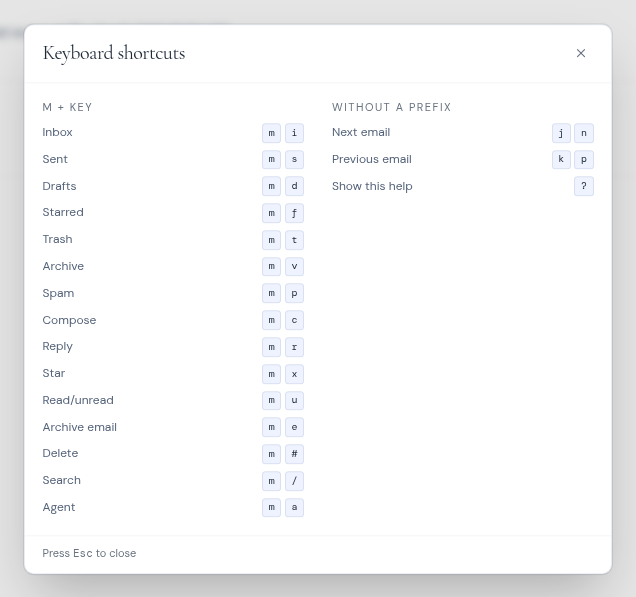
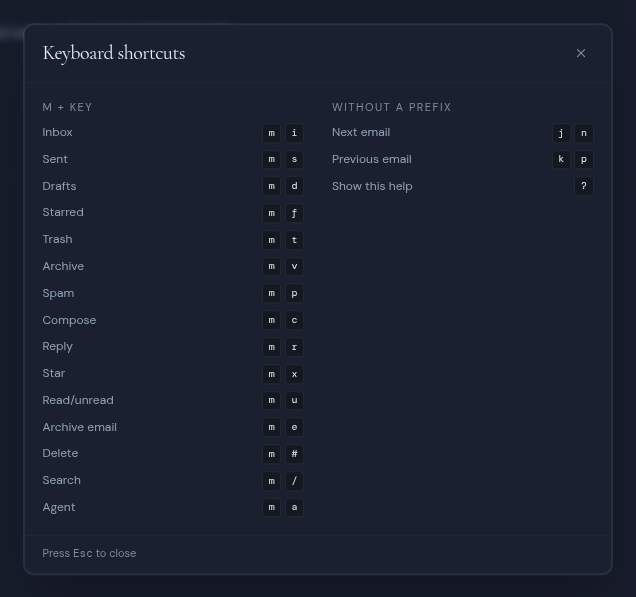
Mail shortcuts use the letter m first. Press m, then the second key within about a second and a half. While m is waiting for the next key, a bar at the bottom of the screen lists every choice.
Shortcuts do nothing while you are typing in a field, such as the search box or the composer.
m shortcuts
Go to a folder
| Keys | Goes to |
|---|---|
| m then i | Inbox |
| m then s | Sent |
| m then d | Drafts |
| m then f | Starred |
| m then t | Trash |
| m then v | Archive |
| m then p | Spam |
Act on mail
| Keys | What it does |
|---|---|
| m then c | Opens a new message. |
| m then r | With a message open, opens a new, empty message. It does not fill in a reply: use Reply in the toolbar for that. |
| m then x | Stars or unstars the open message. |
| m then u | Marks the open message as read or unread. |
| m then e | Archives the open message. |
| m then # | Deletes the open message, without asking first. |
| m then / | Jumps to the search box. |
| m then a | Opens or closes the Mail AI panel. |
Single keys
| Key | What it does |
|---|---|
| j or n | Opens the next message in the folder and marks it read. It also steps through messages the current tab hides. |
| k or p | Opens the previous message in the folder and marks it read. It also steps through messages the current tab hides. |
| ? | Shows or hides the Keyboard shortcuts help. |
| Esc | Closes the composer, or the shortcuts help. |
j, n, k and p do nothing while you hold Ctrl, Cmd, Alt or Shift.
For shortcuts that work everywhere in Metis Suite, such as switching workspaces, see Reference.