Organize mail
Star, archive, delete, restore, mute and mark messages as read or unread, one at a time or in bulk.
The toolbar above an open message holds the everyday actions. Most of them also have a keyboard shortcut, and several work on many messages at once.


Star a message
Click the star on the message row, click Star in the toolbar, or press m then x. The toolbar button changes to Starred. Click it again to remove the star.
Starred messages appear in the Starred folder and on the Starred tab.
Archive a message
Click Archive in the toolbar, or press m then e. The message moves to the Archive folder and leaves your Inbox.
Delete a message
Click Delete in the toolbar. In the Delete this email? dialog, click Delete. The message moves to Trash, and you can restore it later.
Restore a message from Trash
- Open Trash and click the message.
- Click Restore in the toolbar. It takes the place of Archive in Trash.
The message moves back to your Inbox.
How long messages stay in Trash depends on your provider. Gmail, Outlook and Zoho Mail delete them for good after 30 days. Other mail servers decide for themselves.
Mute a conversation
Click Mute in the toolbar. The conversation is hidden from your Inbox. It still shows in other folders, such as Archive or Sent.
To undo it, find the conversation in another folder, open it and click Unmute.
Muting is personal and stays in place after you reload the page.
Mark as read or unread
Opening a message marks it as read. To change it back, press m then u while the message is open. Press it again to mark it read.
Work on many messages at once
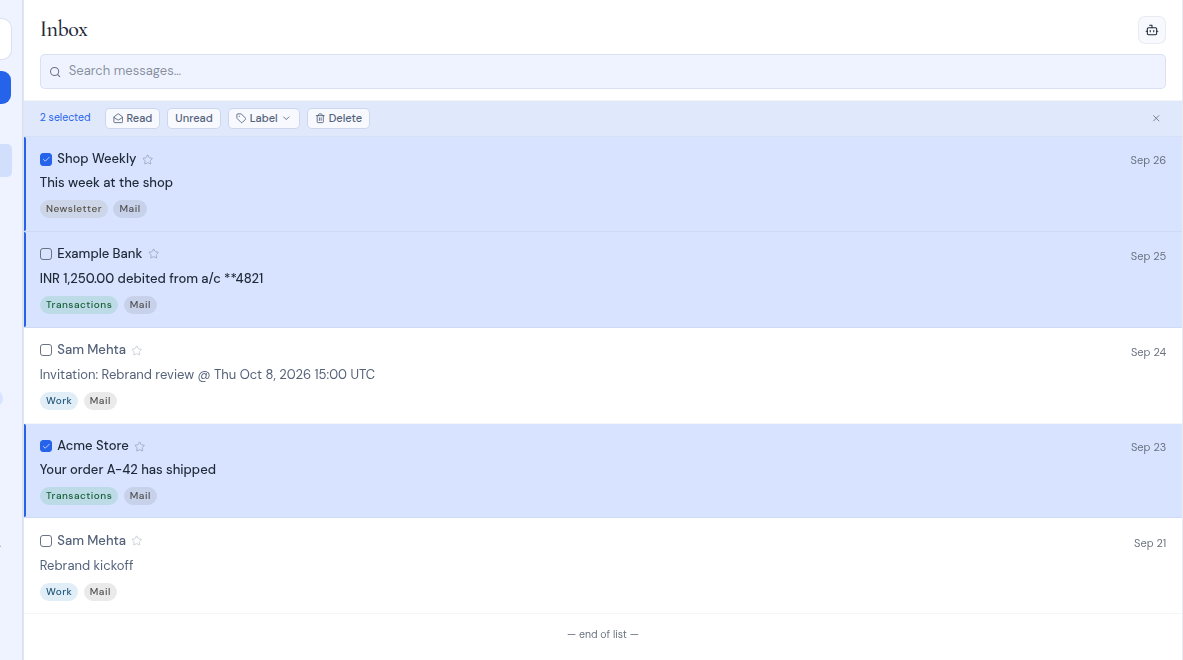
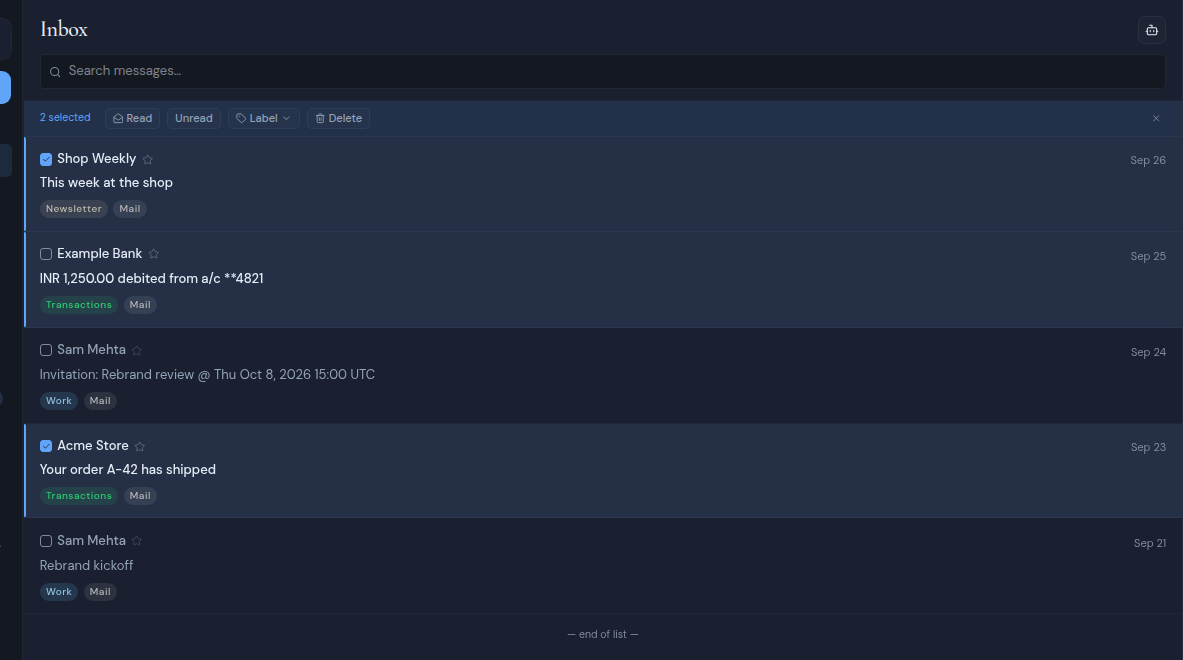
- Tick the checkbox on each message row you want. A bar replaces the tabs and shows how many are selected, for example 2 selected.
- Click an action:
- Read marks them as read.
- Unread marks them as unread.
- Label gives them all the same label. See Labels.
- Delete moves them to Trash. A dialog asks you to confirm and reminds you that you can restore them from the Trash folder.
- Click the X in the bar (Clear selection) to stop selecting.