Keyboard shortcuts
Switch views, move between dates, create events and open Calendar AI from the keyboard.
Most calendar shortcuts are two keys pressed one after the other: first c, then a second key. After you press c, a hint with the available keys shows for about a second and a half. If you press a key that is not in the list, nothing happens.
Shortcuts do not work while you are typing in a box, such as an event title.
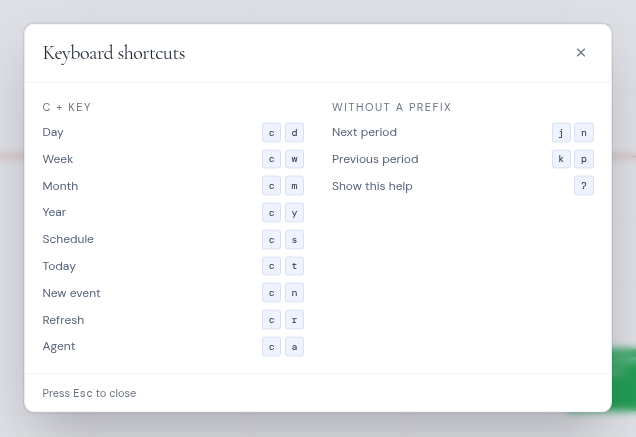
Press c, then
| Keys | What it does |
|---|---|
| c d | Day view |
| c w | Week view |
| c m | Month view |
| c y | Year view |
| c s | Schedule view |
| c t | Go to today |
| c n | New event, starting at the next full hour |
| c r | Refresh the calendar |
| c a | Open or close Calendar AI |
Single keys
| Key | What it does |
|---|---|
| j or n | Next day, week, month or year, depending on the view |
| k or p | Previous day, week, month or year, depending on the view |
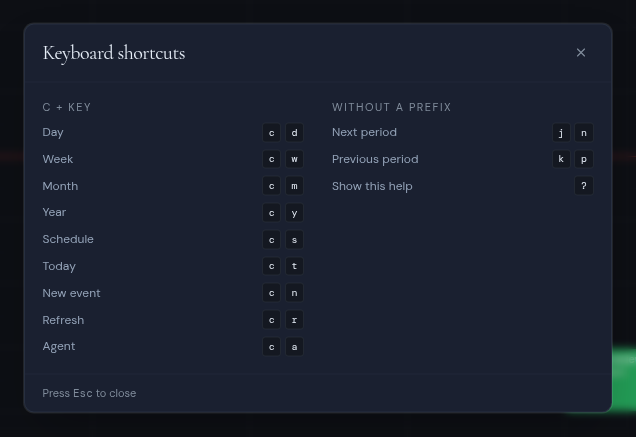
| ? | Show the Keyboard shortcuts help |
Switch workspace
Hold Alt (Option on a Mac) and press a number from 1 to 9 to switch to that workspace. When you belong to more than one workspace, the help lists your first five under “Workspaces”.