Manage MCP clients
Choose a client's tools and workspaces, see its sign-ins, turn it off, or remove it.
Every AI app you connect through MCP has its own entry under Settings, MCP clients. Each client belongs to you alone, not to a workspace. A client that is not on your list has no access to your account.
The client list
Each row in the list shows:
- The client’s icon and name, with a Disabled badge if you turned it off.
- What kind of client it is (for example Claude Code, or “Self-identified client” for an app that identified itself), when you added it, when it was last used (or “never used”), how many of your workspaces it can reach, and, once you have approved it, “authorized” or how many authorizations it holds.
- A switch to turn the client on or off.
- A trash button (Remove client).
Click a row to open the client’s own page.
A client’s page
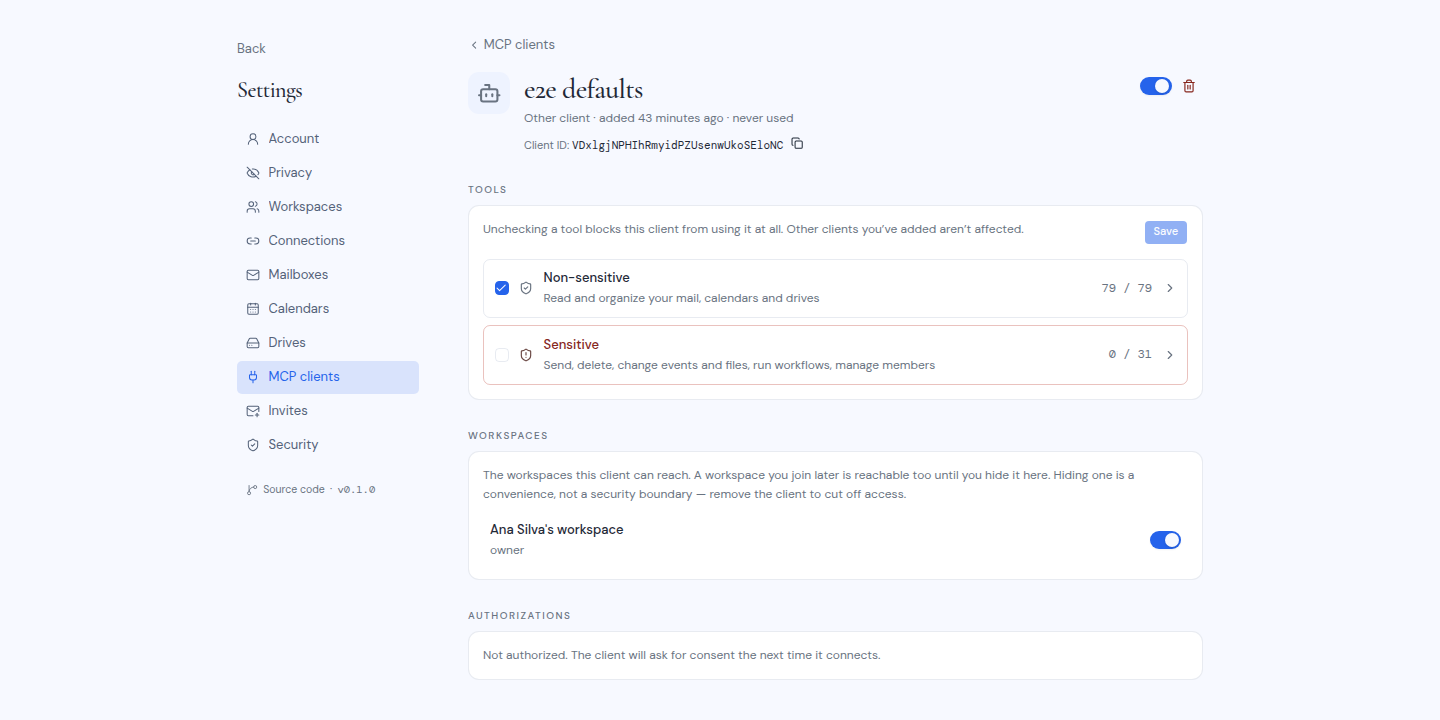
The top of the page shows the client’s name, its details, and its Client ID with a Copy client ID button. Below that are three sections.
Tools
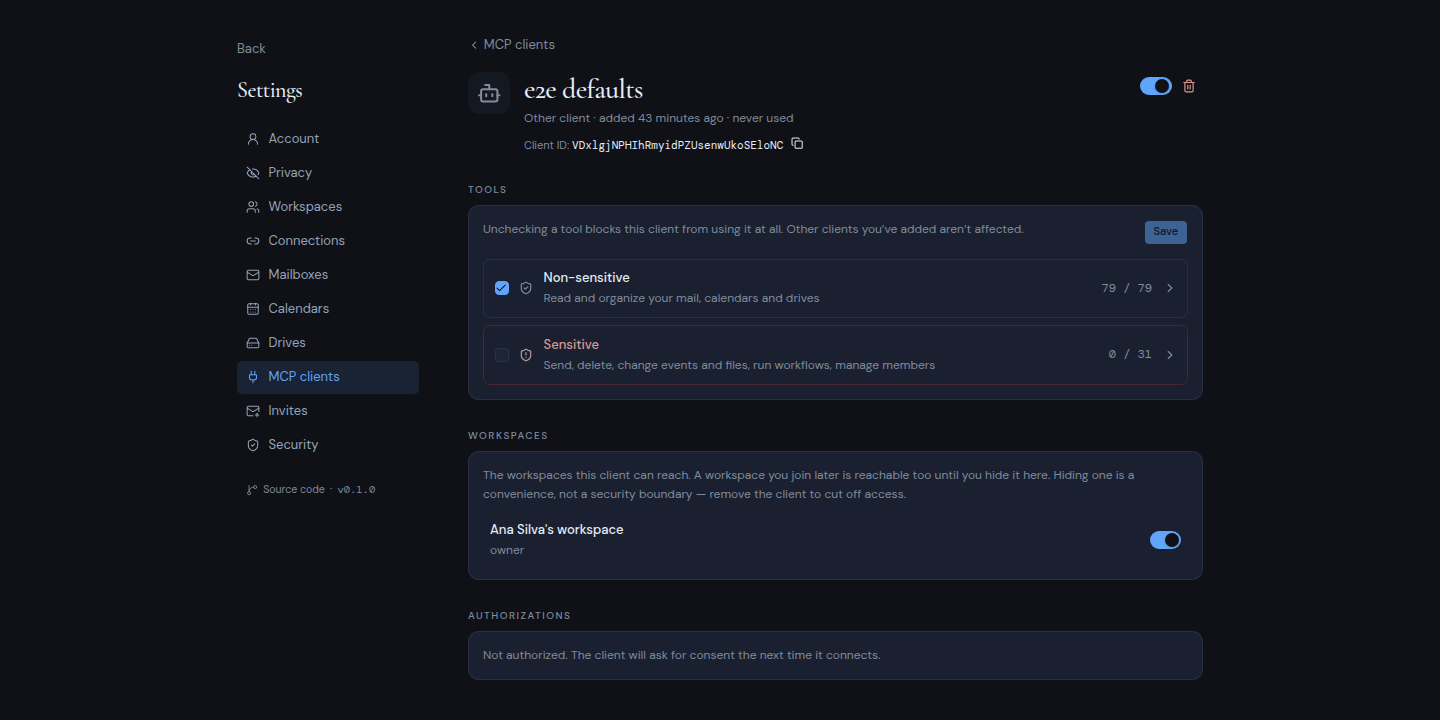
Choose which tools this client may use. Unchecking a tool blocks this client from using it at all. Your other clients are not affected.
The tools are split into two groups:
- Non-sensitive: read and organize your mail, calendars and drives. These are on for a new client.
- Sensitive: send, delete, change events and files, run workflows and manage members. These are off for a new client.
Each group has a checkbox that turns every tool in it on or off, a count of how many are on, and a search box. Click Save when you are done. For the full list, see What an MCP client can do.
Workspaces
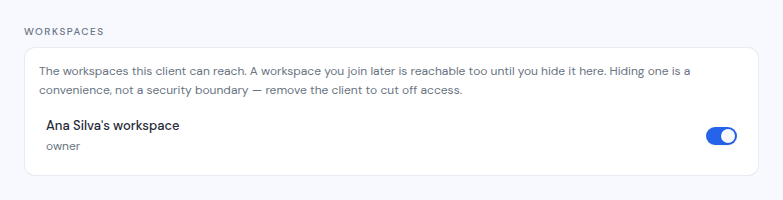
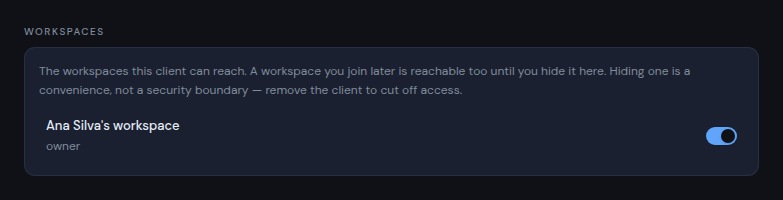
Choose which of your workspaces this client can reach. Each workspace has a switch, labelled with your role there. Changes save straight away.
- A workspace you join later is reachable too, until you turn it off here.
- A workspace with AI turned off shows “Unavailable” and its switch cannot be used. No client can reach it.
- Hiding a workspace is a convenience, not a security measure. To cut a client off completely, remove it.
Authorizations
Each time you approve the client’s sign-in, it gets an authorization. This section lists each one, with when you approved it and when it expires. If the client has none, the section says it will ask for your approval the next time it connects.
- Revoke ends one authorization. The client cannot renew it, so it must ask for your approval again, with your two-factor code. Other authorizations it holds keep working.
- Revoke all (shown when there is more than one) ends every authorization. The client stays on your list, so you do not need to set it up again in your app.
Access the client already has can keep working until it expires. To cut a client off at once, turn it off or remove it.
Changes to tools and workspaces apply from the client’s next request.
Turn a client off or back on
Use the switch next to the client, in the list or on its page.
- Off: the client stops working at once. Its requests are refused with “This MCP client is disabled or no longer registered.”
- On again: Metis Suite asks for your two-factor code, because a client that is on can sign back in by itself, even after you sign out. In the Re-enable dialog, type the code and click Enable.
Remove a client
-
Click the trash button (Remove client) in the list or on the client’s page.
-
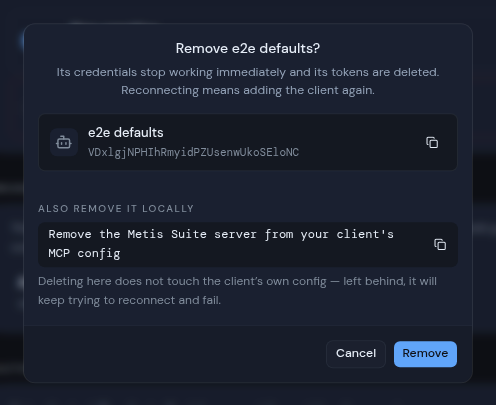
Read the dialog. It shows the client ID and, under Also remove it locally, the command or step that removes Metis Suite from your app (for example
claude mcp remove metis-suite). Click Copy removal command if you want it.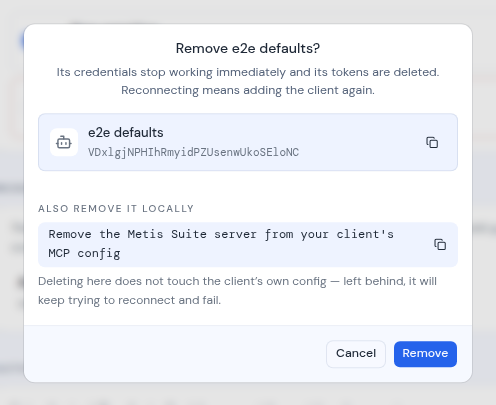
-
Click Remove.
The client’s access ends at once and its sign-ins are deleted. To connect it again, you have to add it again. Removing it here does not change your AI app’s own settings, so also remove Metis Suite from the app. Otherwise the app keeps trying to connect and fails.
Common messages
| Message | What it means |
|---|---|
| “Invalid authenticator or backup code” | The two-factor code was wrong or expired. Type a new one. |
| “Enter your authenticator code to re-enable this client” | Type your two-factor code before you click Enable. |
| “Too many attempts. Please slow down.” | You tried too many times in a short time. Wait a few minutes, then try again. |
| “Claude Code needs a fixed sign-in port.” | Fill in Sign-in port when you add a Claude Code client. |
| “At least one callback URL is required” | Fill in Sign-in return URL when you add an Other client. |
| “Could not add the client” | Something went wrong. Try again. |
If your AI app reports that it is sending too many requests, wait a minute and try again. Metis Suite limits how many requests each client can make per minute.