Triggers
The four ways a workflow can start, and how to set a schedule with cron and a time zone.
A trigger decides when a workflow runs. Every workflow starts with at least one trigger, and a trigger never has a connection coming into it. Add a trigger from Add step under Trigger.
| Trigger | Runs | Feeds into |
|---|---|---|
| When mail arrives | Shortly after new mail lands in one mailbox | One Mailbox step set to newly arrived mail |
| On a schedule | At the times you set | Mailbox steps set to a folder or search |
| When run manually | Only when you press Run now | Mailbox steps set to a folder or search |
| Before a message is sent | Each time you send a message | If and Auto-BCC steps only |
A workflow can have more than one trigger. For example, to watch two mailboxes for new mail, add one When mail arrives trigger for each.
When mail arrives
This trigger watches one mailbox for new mail. Connect it to a Mailbox step and set that step’s Provides to newly arrived mail. To watch a second mailbox, add a second trigger.
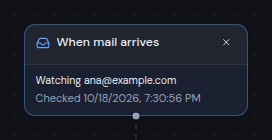
Before it is connected, the card says “Connect this to one mailbox step set to “newly arrived mail”. Add another trigger to watch another mailbox.” Once connected and saved, the card says “Watching” followed by the mailbox address, and a status line below it:
| Status | Meaning |
|---|---|
| Taking a baseline | Metis Suite is noting the mail already in the mailbox. That mail is skipped. |
| Checked and a time | The last time the mailbox was checked for new mail. |
| Last check failed | The last check did not work. The card shows the reason. |
| Paused | The mailbox is not being watched, for example because the workflow is turned off. |
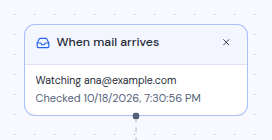
Mail that is already in the mailbox when you turn the workflow on is never processed. Only mail that arrives afterwards goes through the workflow. Turning a workflow off and on again takes a fresh baseline, so mail that arrived while it was off is skipped too.
You cannot use Run now with a workflow whose only trigger is When mail arrives.
On a schedule
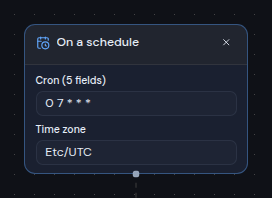
This trigger runs the workflow at set times. It has two fields:
- Cron (5 fields): when to run, written as a cron expression. The default is
0 9 * * 1-5, which means 9:00 every weekday. - Time zone: the time zone the times are in. It starts as your browser’s time zone. Enter a time zone name such as
Europe/BerlinorAmerica/New_York.
A cron expression is five values separated by spaces. In order, they are the minute, the hour, the day of the month, the month, and the day of the week. A * means “every”. Days of the week run from 0 (Sunday) to 6 (Saturday).
| Cron | Runs |
|---|---|
0 9 * * 1-5 |
9:00 every Monday to Friday |
0 7 * * * |
7:00 every day |
30 17 * * 5 |
17:30 every Friday |
0 8,13 * * * |
8:00 and 13:00 every day |
*/30 * * * * |
Every 30 minutes |
0 6 1 * * |
6:00 on the first day of every month |
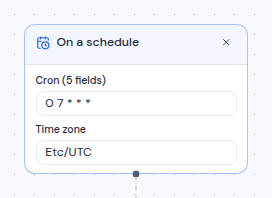
If the expression is not a valid five-field cron expression, saving shows “Use a five-field cron expression, for example 0 9 * * 1-5”. If the time zone is not a known name, saving shows that it “is not a known time zone”.
A run can start a little after the scheduled minute. If your server was down when one or more scheduled times passed, the workflow runs once when the server is back, not once for every missed time. The run details then say how many missed times were combined.
A schedule trigger feeds Mailbox steps set to a folder or search, such as the 20 newest messages in your inbox. Run now also works with a scheduled workflow, so you can test it without waiting.
When run manually
This trigger has no settings. Its card says “Runs only when you press Run now.” Use it for clean-up jobs you want to start yourself, or to test a workflow before you put it on a schedule.
Like a schedule, it feeds Mailbox steps set to a folder or search. See Run a workflow and check its history.
Before a message is sent
This trigger runs each time anyone in the workspace sends a message from the mail app, just before it goes out. This includes scheduled messages. Mail sent by the AI assistant or a connected AI client does not trigger it. Its only field is Applies to: choose Any mailbox, or one mailbox so it only runs for mail sent from that address.
It can only feed If and Auto-BCC steps. Use it to add a BCC address to outgoing mail. See Add a BCC to outgoing mail.
These checks happen as part of sending, so they do not appear under Activity.