Manage signed-in devices
See every browser signed in to your account and sign out the ones you do not recognize.
The Account settings page shows your profile and every browser that is signed in to your account right now. Check it if you signed in on a shared computer, lost a device, or see something you do not recognize.
Open the Account page
- Open your user menu (the round button with your initials at the bottom of the left rail).
- Click Settings. The Account page opens.
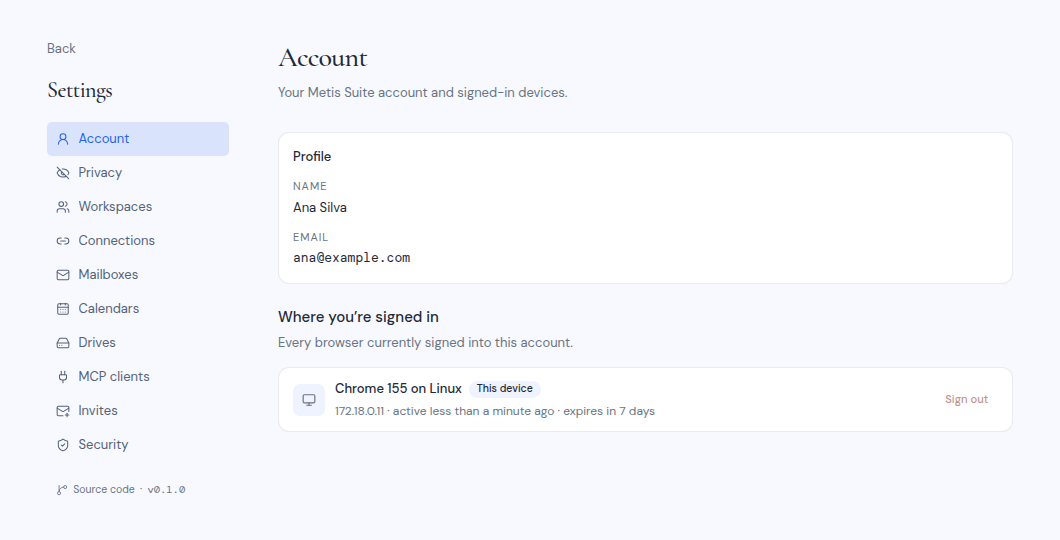
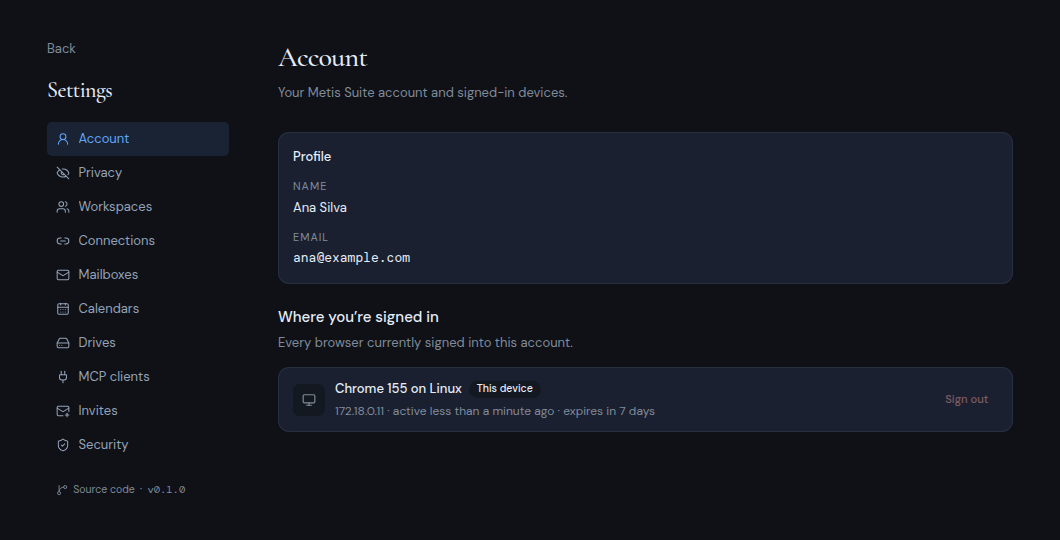
Your profile
The Profile card shows your Name and Email. You cannot change them in Metis Suite.
See where you are signed in
The section Where you’re signed in lists “Every browser currently signed into this account.” Each row shows:
- The browser and system, for example “Chrome 130 on Windows”.
- A This device badge on the browser you are using now.
- The network address it signed in from, when it was last active, and when the session expires.
Sign out one browser
Click Sign out on that browser’s row. It is signed out right away. You do not need a code for this.
You cannot sign out the browser you are using from this list. To do that, use Sign out in your user menu.
Sign out every other browser
The Sign out all button appears when you are signed in somewhere else too.
- Click Sign out all.
- The box Sign out other browsers? tells you how many other sessions will end.
- To sign out this browser as well, tick Also sign out this device. You then go back to the sign-in page.
- Enter a code from your authenticator app or a backup code.
- Click Sign out others. If you ticked the box, the button says Sign out everywhere instead.
The other sessions end immediately.
Changing your password also signs out every other browser. See Change or reset your password.