Privacy settings
Choose whether images in mail load on their own, clean tracking from links, and manage the senders whose images you trust.
Many emails try to learn things about you. A hidden image can tell the sender that you opened a message, when, and from where. A link can carry tracking codes that record your click. The Privacy settings let you decide how messages you open behave.
These choices belong to you alone. They apply in every mailbox and every workspace you use, and nobody else’s settings change when you change yours.
Open the Privacy page
- Open your user menu (the round button with your initials at the bottom of the left rail) and click Settings.
- Click Privacy.
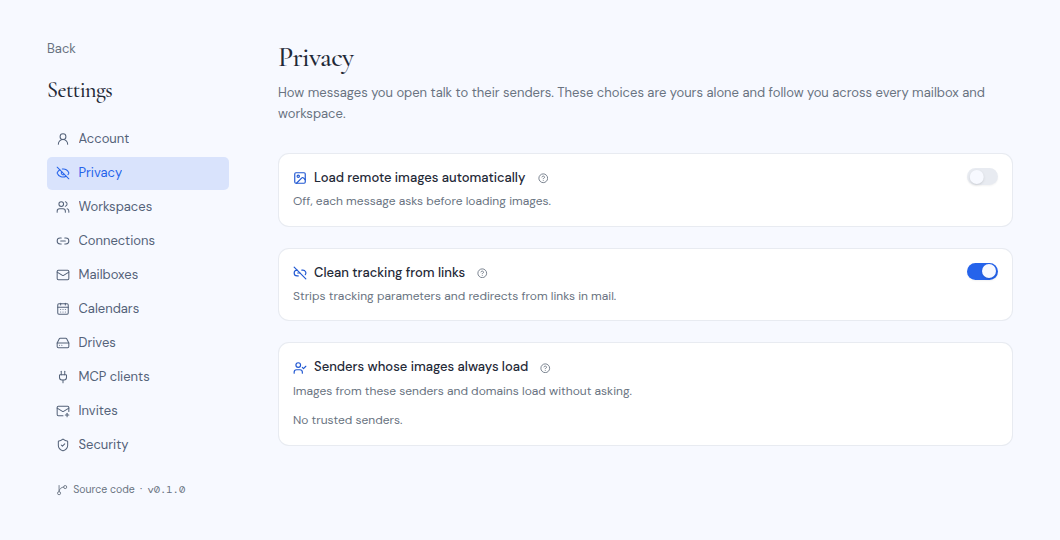
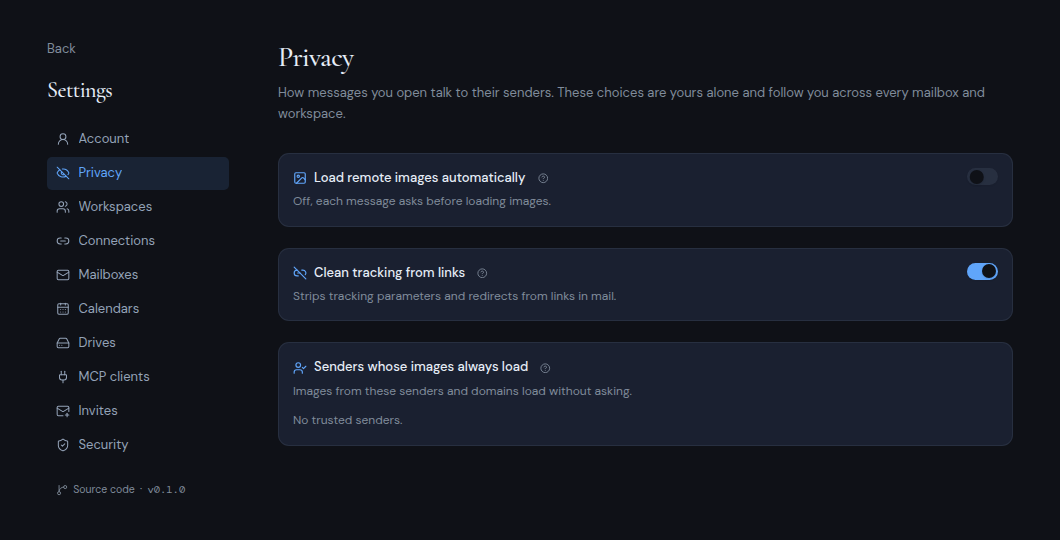
Each card has a question mark button. Point at it to see a short explanation of that setting.
Load remote images automatically
Remote images are pictures that load from the sender’s servers when you open a message. This switch is off at first.
- Off (the default): each message asks before it loads images. On a message’s image banner, you can load its images once, or always load images from that sender or that sender’s domain.
- On: images load as soon as you open a message.
Either way, Metis Suite always removes known trackers. Fonts, stylesheets and media from the web never load.
How images reach you depends on how your instance is set up:
- Loaded for you: the server loads images on your behalf, so senders never see your network address, device or cookies. They can still learn that the message was opened, and when.
- Loaded directly: images load straight from the sender’s servers, which then see your network address and browser.
Point at the question mark on this card to see which one your instance does.
Clean tracking from links
This switch is on at first. It “Strips tracking parameters and redirects from links in mail.”
When it is on, Metis Suite removes tracking codes from links. If a link sends you through a tracking service first, Metis Suite goes straight to the real destination when it can read that destination from the link itself. It never opens the link to find out.
Some links cannot be cleaned this way. When you hover over one, it is marked as tracked, so you know before you click.
If a cleaned link stops working, turn this switch off.
Senders whose images always load
This list shows the senders and domains whose images load without asking. You add entries from a message: on its image banner, choose Always from … for that sender or domain.
Each entry is labelled:
- Sender: only that exact email address.
- Domain and its subdomains: every address at that domain, and at any of its subdomains.
To remove an entry, click the X button next to it. When the list is empty, it says “No trusted senders.”
Trusting a sender only ever loads its images. It does not change anything else. Keep in mind that a sender’s address can be faked, so trust only senders you are sure about.
To learn more about reading mail, see Mail.