Create an event
Start a new event from the sidebar, the keyboard or the calendar grid, fill in its details and save it to one of your calendars.
When you save a new event, Metis Suite creates it at your calendar provider, in the calendar you pick. You can create events only. Tasks and booking pages are not available.
Start a new event
Each of these opens the New event dialog:
| Where | What to do | When the event starts |
|---|---|---|
| Sidebar | Click Create. | At the start of the next hour. |
| Keyboard | Press c, then n. | At the start of the next hour. |
| Day or Week view | Click an empty spot in the hour grid. | At the quarter hour you clicked, for example 3 PM. |
| Month view | Click the empty space in a day, below its events. | At 9 AM on that day. |
The new event lasts one hour. You can change the times in the dialog.
Fill in the details
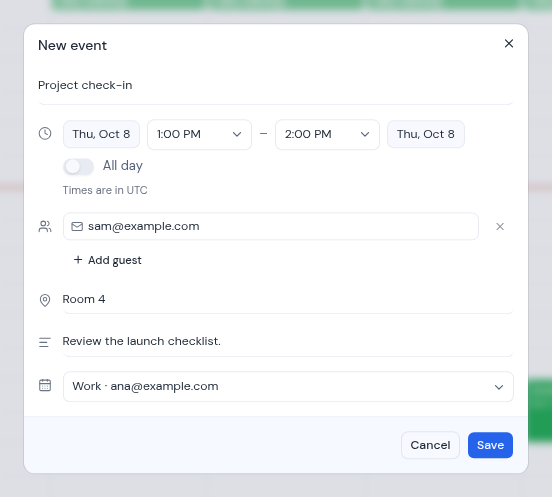
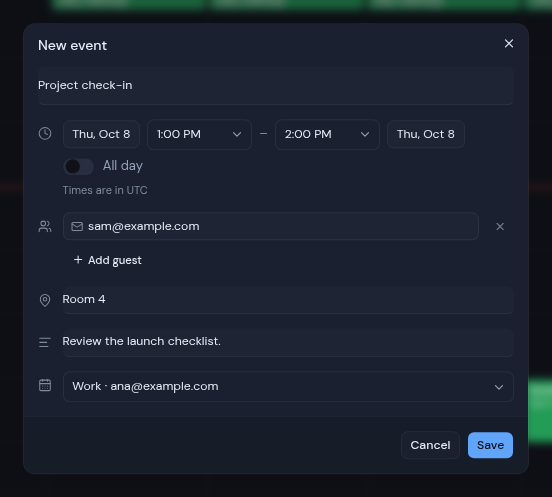
- Type a name in Add title. The title is required.
- Set the date and time:
- Click the start date and time, and the end date and time, to change them. Times go in steps of 15 minutes. The list of end times only offers times after the start.
- If you move the start past the end, the end moves to one hour after the new start.
- Turn on All day for an event with no times. The time pickers then disappear.
- The line under the times, such as “Times are in Europe/London”, shows the time zone the times are in. This is your device’s time zone.
- To invite people, type an email address in Add guest. Press Enter or click Add guest to add another row. You can also paste a list of addresses, and each one gets its own row.
- To add an online meeting, turn on Add Google Meet or Add Teams meeting. You see this switch only when the event goes to a Google or Microsoft calendar.
- Add a place in Add location and notes in Add description if you want.
- Pick the calendar to save the event to. Each choice shows the calendar name and the account’s email address. The list shows only calendars you can write to, so read-only calendars such as a holiday calendar are not in it. At first, your primary calendar is picked, or the first one in the list.
- Click Save. The button shows Saving… while Metis Suite creates the event.
Click Cancel to close the dialog without saving.
If the calendar refreshes while the dialog is open, what you typed stays in place.
Does Metis Suite email my guests?
That depends on your calendar provider:
- Google Calendar: Google sends updates to your guests when you create, change or delete an event, and when you answer an invitation.
- CalDAV calendars: no invitations are sent.
- Other providers follow their own rules for notifying guests.
If the event does not save
The dialog shows a message under the calendar picker and stays open, so you can fix the problem and click Save again.
| Message | What to do |
|---|---|
| “Give the event a title” | Type a title. |
| “Pick a calendar to save it to” | Choose a calendar in the picker. |
| “Not a valid email: …” | Correct the guest addresses listed in the message. |
| “Duplicate email: …” | Remove the guest address you entered twice. |
| “The event has to end after it starts” | Move the end later, or the start earlier. |
| “Could not save the event” | Try again. Your provider may also show its own message here. |