Views and navigation
Open your calendar, switch between the Day, Week, Month, Year and Schedule views, and move between dates.
This page shows you how to open your calendar, pick a view, and get to the date you want.
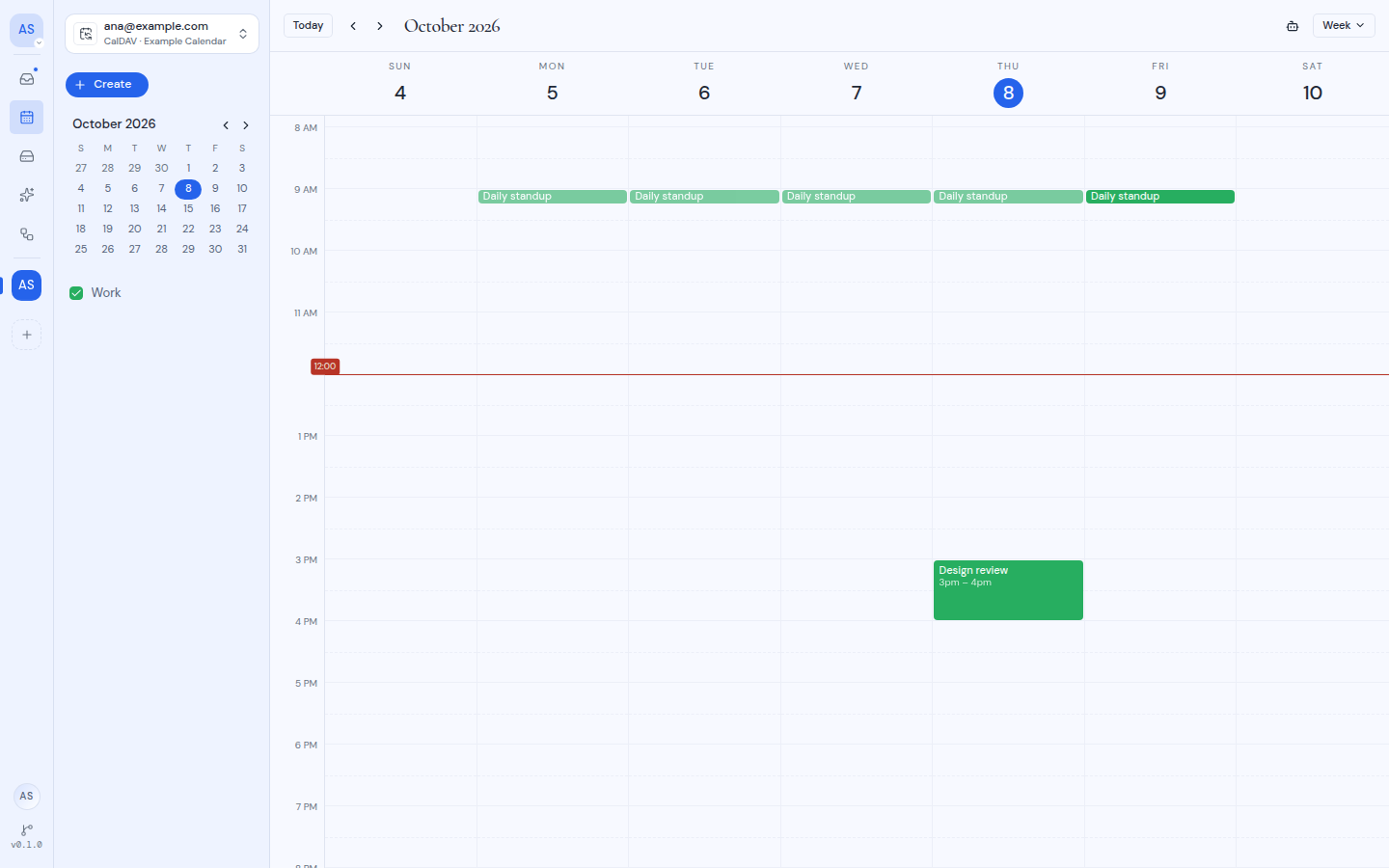
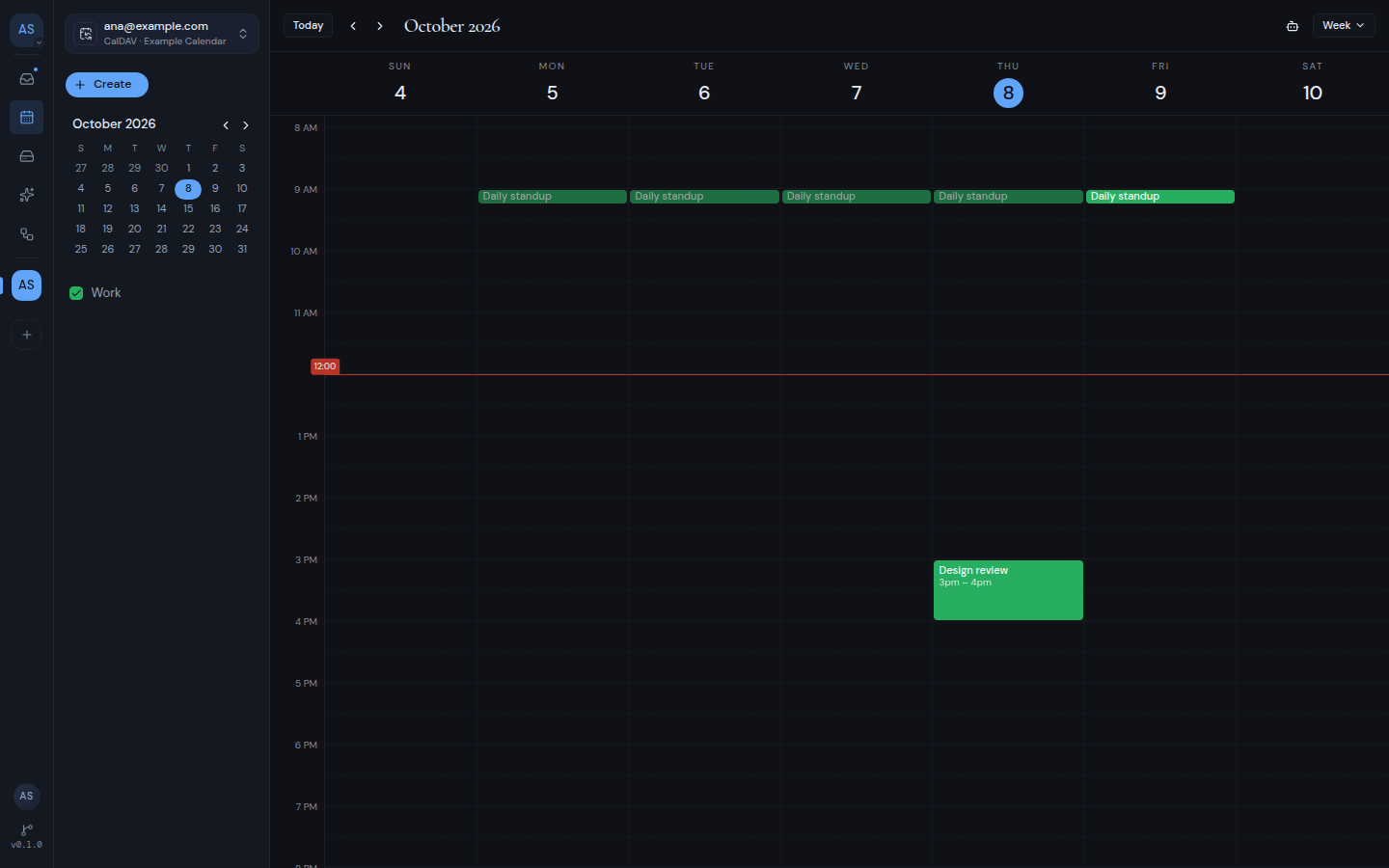
Open your calendar
Click the Calendar icon in the left rail. If your workspace has calendar accounts, you see All calendars: the events from every calendar account in the workspace together.
If the workspace has no calendar account yet, you see “No calendar in this workspace” and a Go to calendar settings button. To add one, see Workspaces.
Switch between calendar accounts
The button at the top of the sidebar shows which calendar you are looking at. It says All calendars with the number of accounts, or it shows one account’s email address.
- Click that button to open the Switch calendar menu.
- Choose All calendars (“Every calendar in this workspace”) to see everything together. This choice appears when the workspace has more than one account.
- Or choose one account to see only its calendars. Each account shows how many of its calendars are shown, or “No calendars shown”.
Add calendar at the bottom of the menu opens the workspace’s calendar settings.
Choose a view
Click the view button at the right of the header. It shows the name of the current view. Pick one of these:
| View | What you see |
|---|---|
| Day | One day as an hour grid. |
| Week | Sunday to Saturday as an hour grid, one column per day. |
| Month | The whole month as a grid of days. |
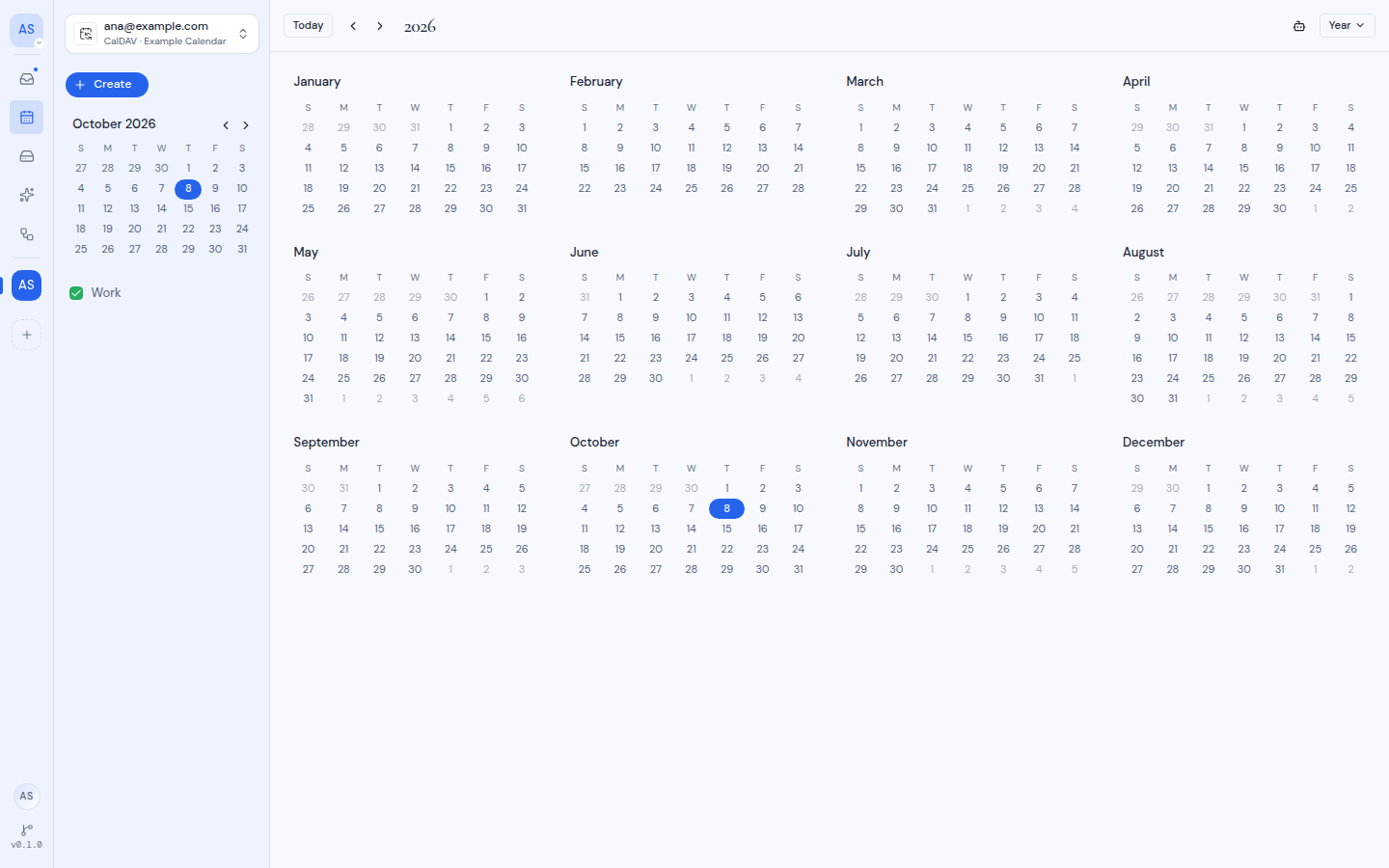
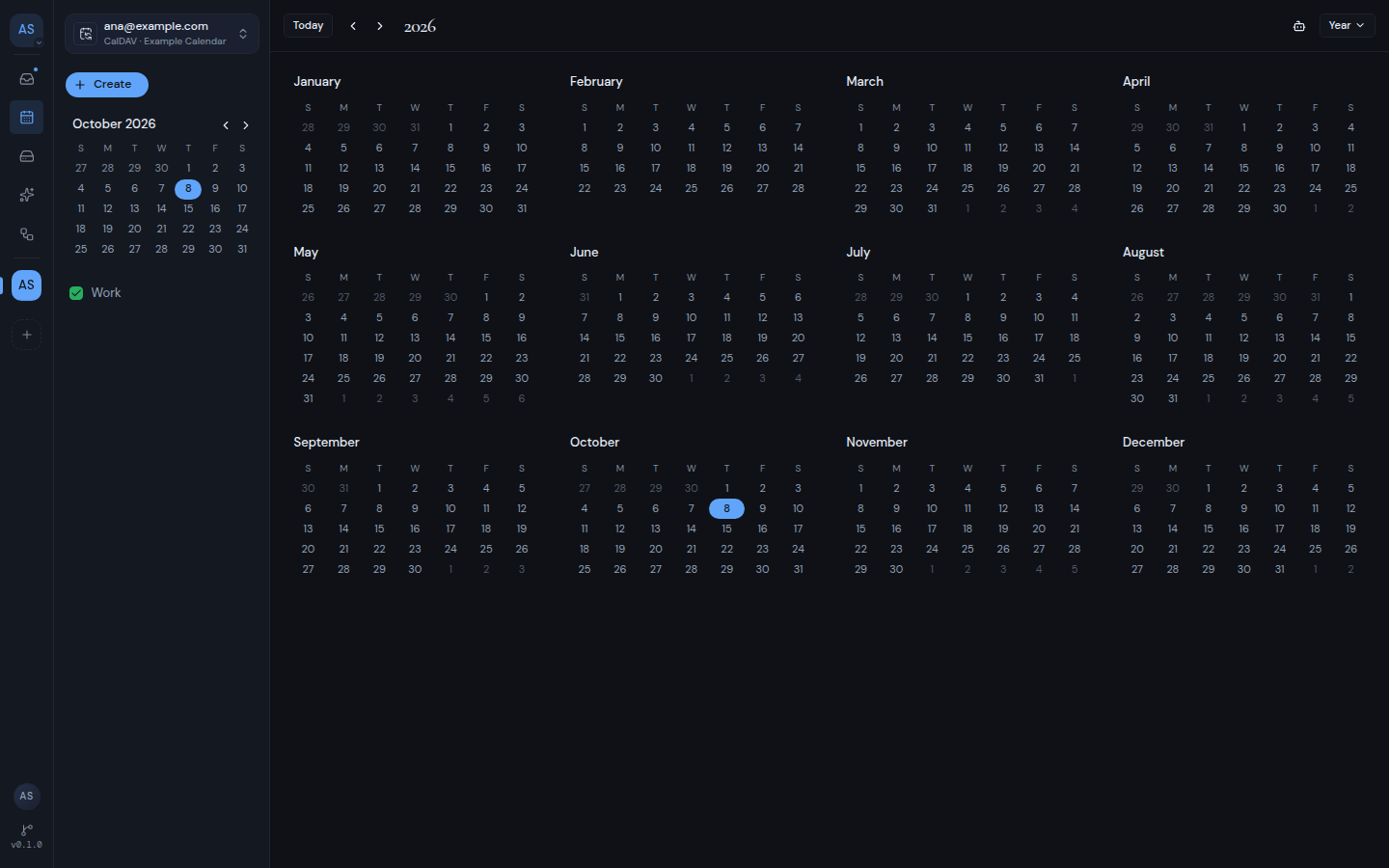
| Year | All 12 months of the year as small month grids. |
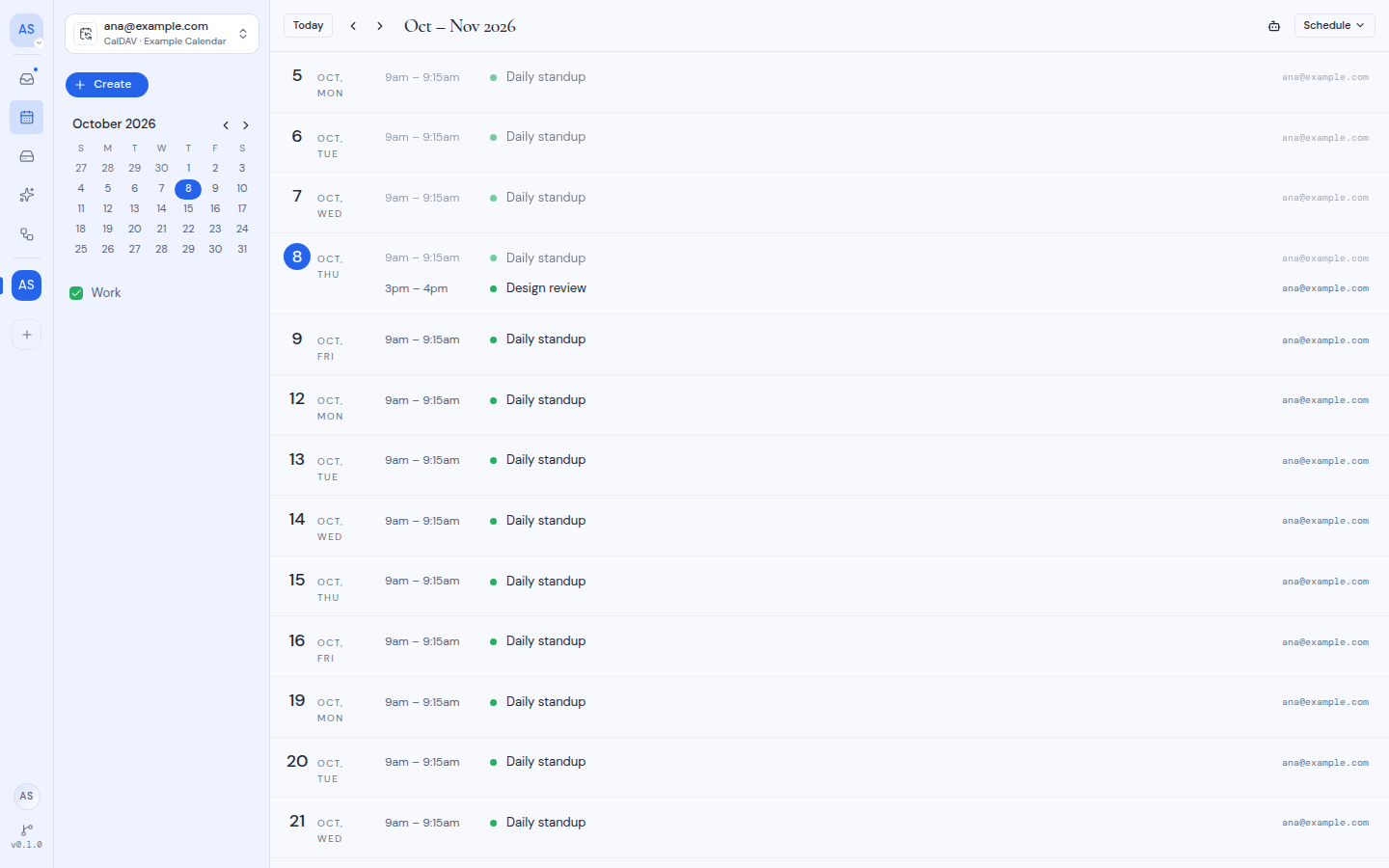
| Schedule | A list of your events for this month and the next month. |
Metis Suite remembers your view for each calendar in this browser. The first time, you see Week. On a phone-sized screen you see Schedule instead.
Day and Week
The hour grid shows one row per hour, with 12-hour labels such as “3 PM”. Events that last all day sit in the All day row above the grid. The grid opens scrolled to about 8 AM, and a line marks the current time.
The All day row shows up to three rows of events.
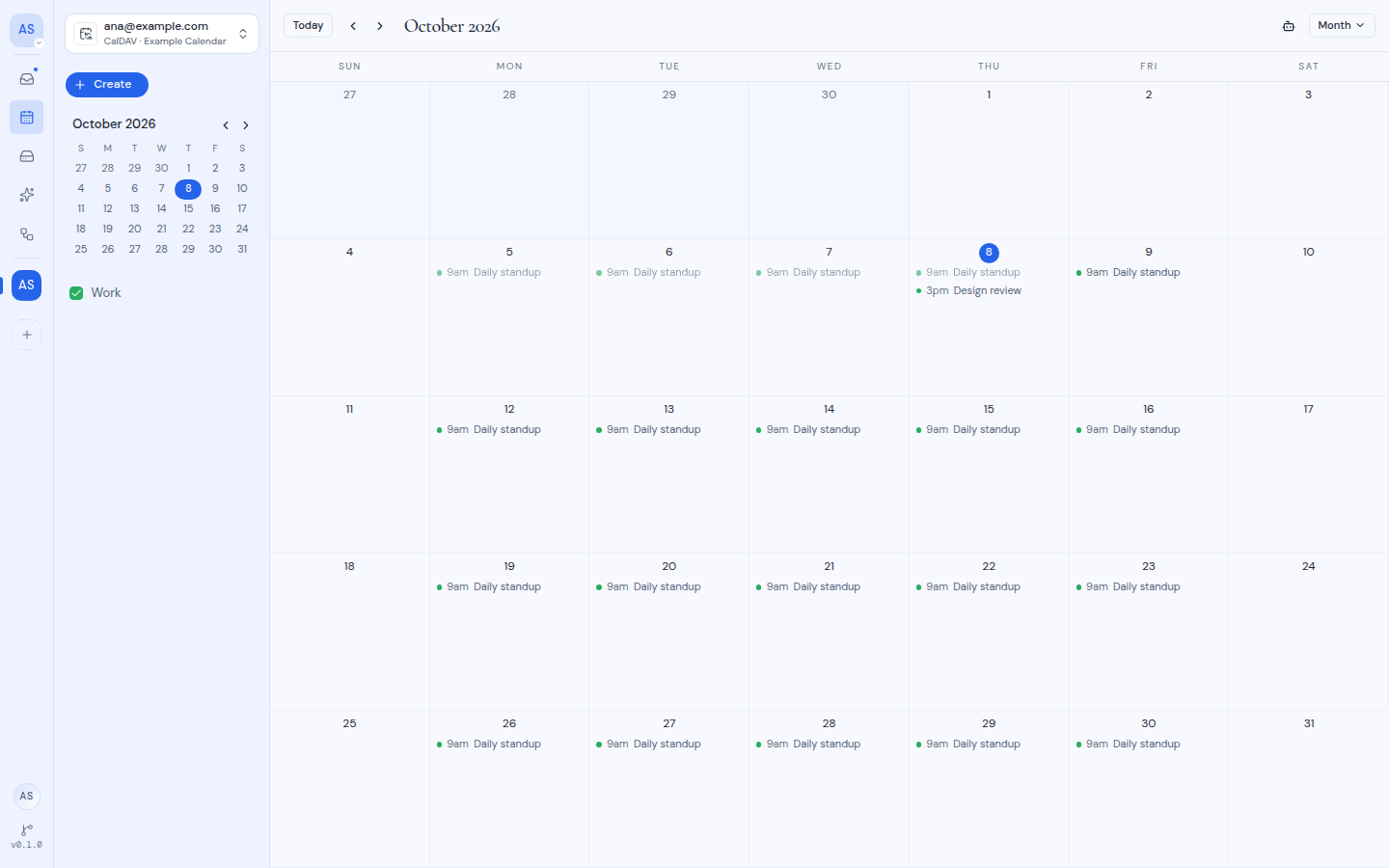
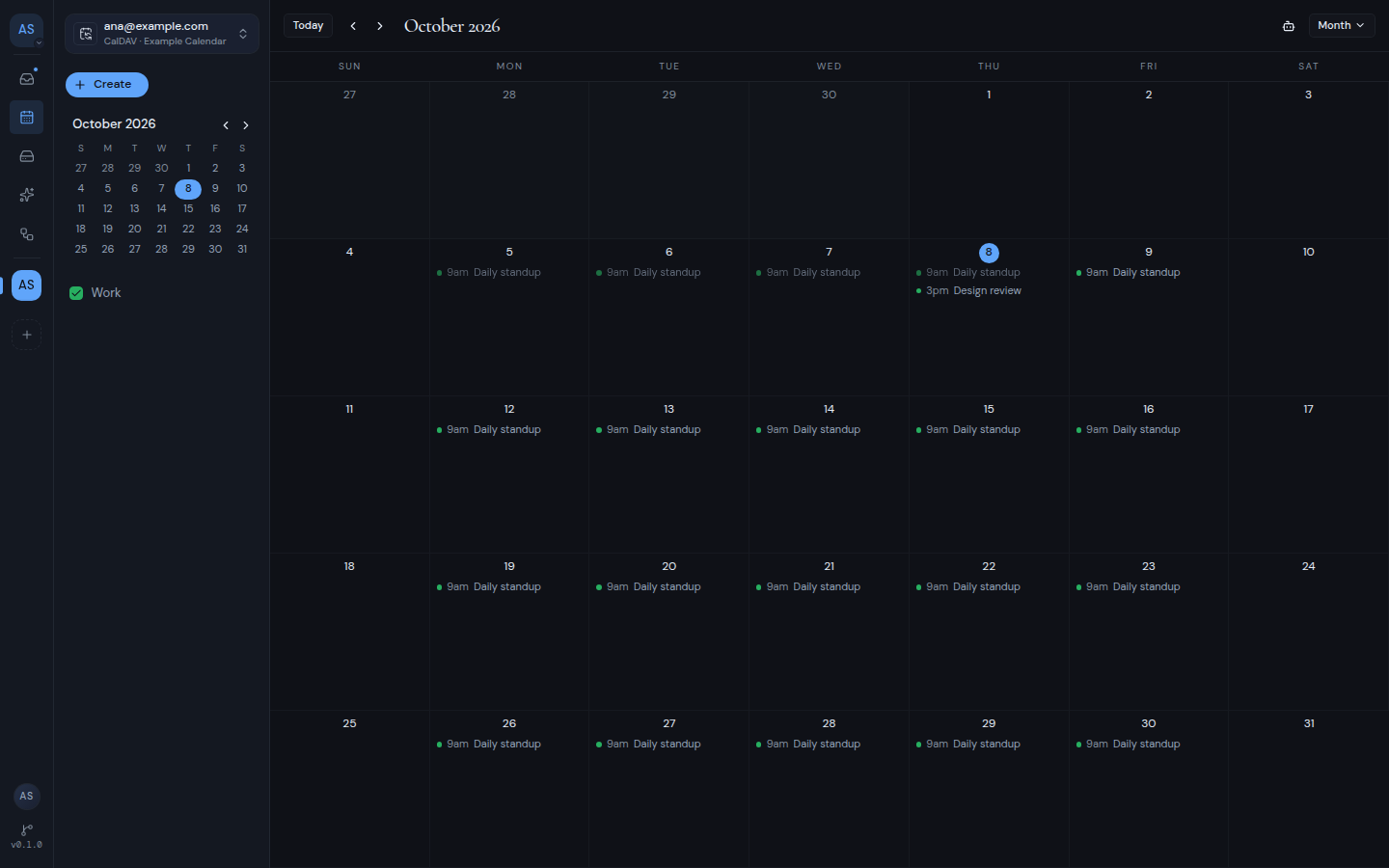
Month
Each day shows up to three events. If a day has more, a link such as “2 more” appears. Events with a start time show a colored dot and the time. Events that span several days show as colored bars.
Schedule
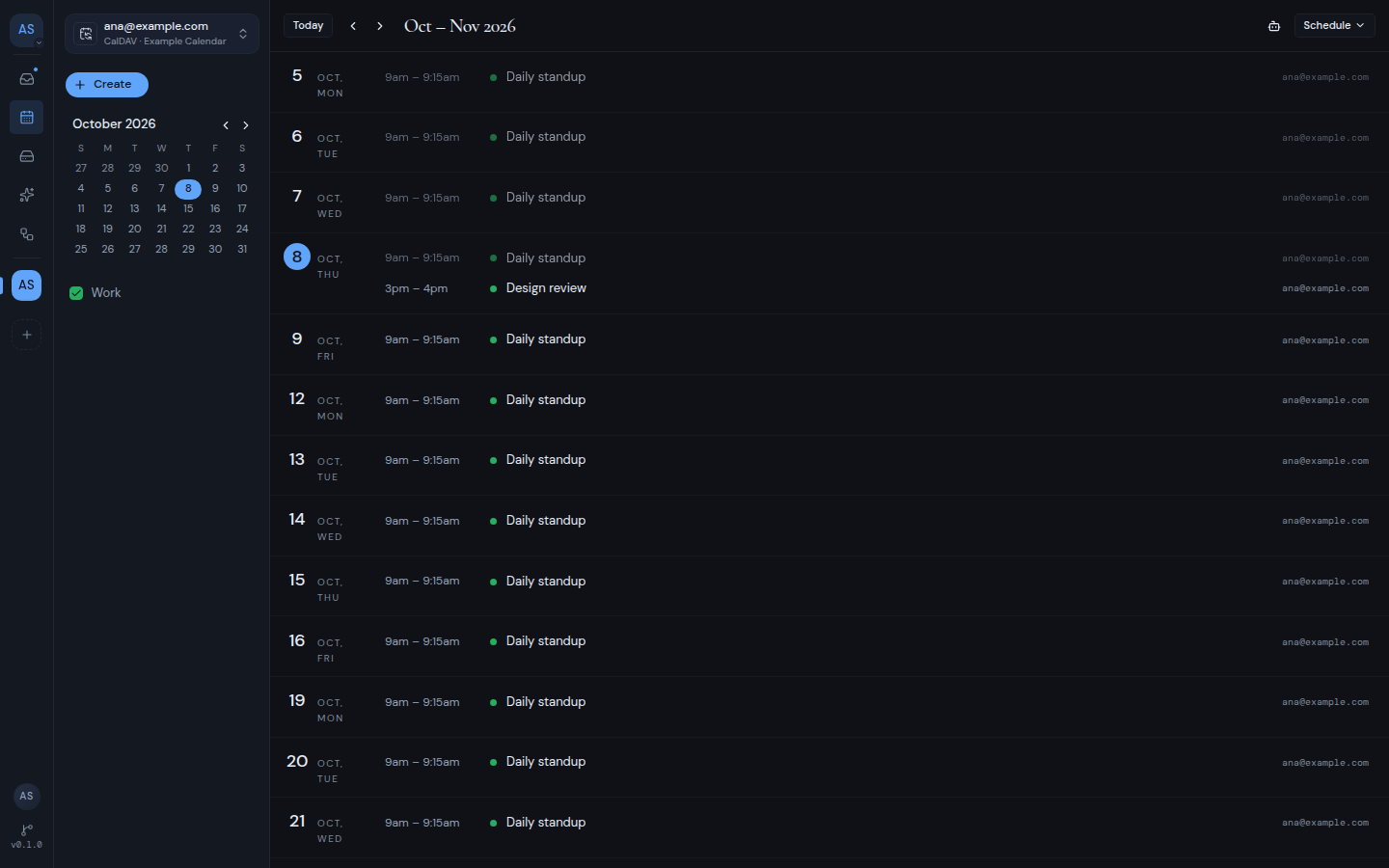
Schedule lists your events day by day. Each row shows the time, a colored dot, the title and the email address of the account the event belongs to. If there is nothing to show, you see “Nothing scheduled in this range.”
How events look
- Each calendar has its own color. Metis Suite uses the color your provider gives the calendar. If there is none, it picks one.
- Events that are already over look faded.
- Cancelled events are crossed out.
Move between dates
The header has three controls on the left:
- Today jumps back to today.
- Previous and Next (the arrow buttons) move back or forward by one day, week, month or year, depending on the view. In Schedule view they move by one month.
The title next to them shows where you are, for example “October 2026”. When a week spans two months, the title names both months. In Year view it shows just the year.
You can also jump straight to a day:
- In the sidebar, use the small month calendar. Click a date to go to it. Use Previous month and Next month to see other months.
- In Month view, click a day’s number to open that day in Day view. A “more” link does the same.
- In Year view, click any day to open it in Day view.
Time zones
Every event is shown in your own time zone, the one your device uses. The hour grid shows your time zone in its top corner, for example “GMT+05:30”.
If you and a teammate are in different time zones, you each see the same event at your own local time. For example, an event at 9:00 AM UTC shows at 9:00 AM for someone whose device uses UTC, and at 2:30 PM for someone in India.
If a calendar account does not load
If one calendar account cannot be reached, a red banner above the calendar shows that account’s email address and the problem. Events from your other calendar accounts still show.
On a phone
On a narrow screen, the sidebar is hidden. Tap Open sidebar to show it.