Logo and color
Give a workspace its own logo and accent color.
The Appearance section of a workspace’s General settings page sets the workspace’s logo and accent color. Both apply to everyone in the workspace.
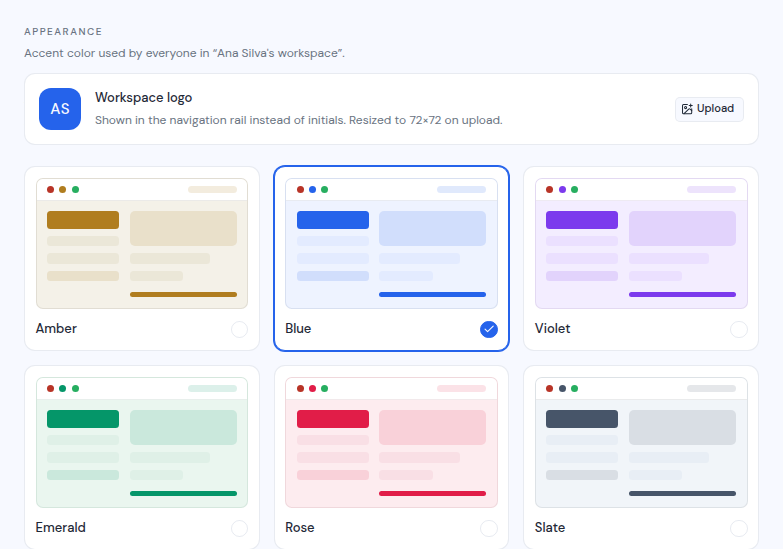
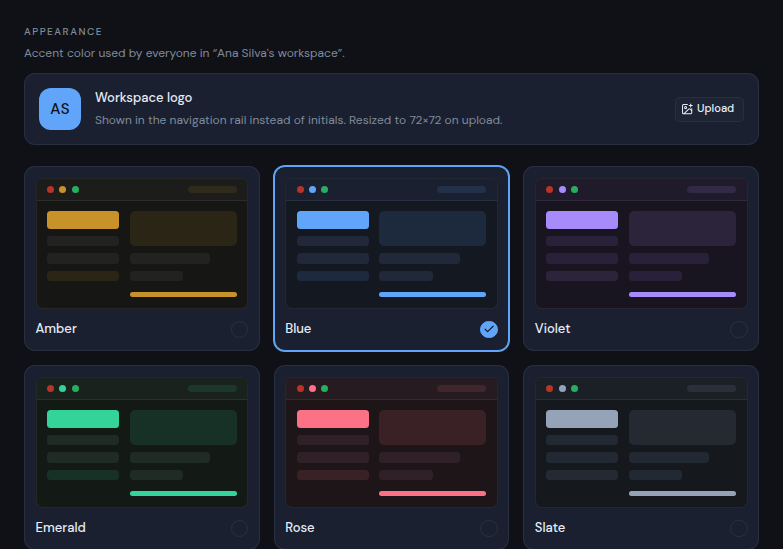
Owners and admins can change them. Members see the section with the note “Only owners and admins can change it.”
Add a logo
The logo replaces the workspace’s initials in the left rail.
- Under Workspace logo, click Upload (or Replace if there is one already).
- Pick an image file of 5 MB or less.
Metis Suite resizes the image to 72 by 72 pixels. To go back to initials, click Remove.
If the upload fails, you see one of these messages:
- “Pick an image file”: the file is not an image.
- “Image must be 5 MB or smaller”: pick a smaller file.
- “Could not process that image”: try another image.
Choose a color
Click one of the color cards: Amber (the default), Blue, Violet, Emerald, Rose or Slate. The change applies at once, for everyone in the workspace.
Light and dark mode is a separate choice, and it is yours alone. Switch it with Dark mode or Light mode in the account menu at the bottom of the left rail.