How workflows work
What a workflow is made of, when it runs, who it runs as and what it can do.
A workflow automates work you would otherwise do by hand in your inbox, such as archiving, starring or labelling mail. This page explains the ideas behind workflows. To build one straight away, follow Build your first workflow.
Where to find workflows
Click Workflows in the left rail. The Workflows page has two parts:
- The sidebar on the left lists every workflow you can see. An enabled workflow has a coloured icon. A disabled one has a grey icon and the word “off” after its name. At the top is the New workflow menu, and at the bottom is the Activity link, which opens the history of every run.
- The canvas on the right shows the workflow you selected, drawn as connected steps. This is where you build and change it.
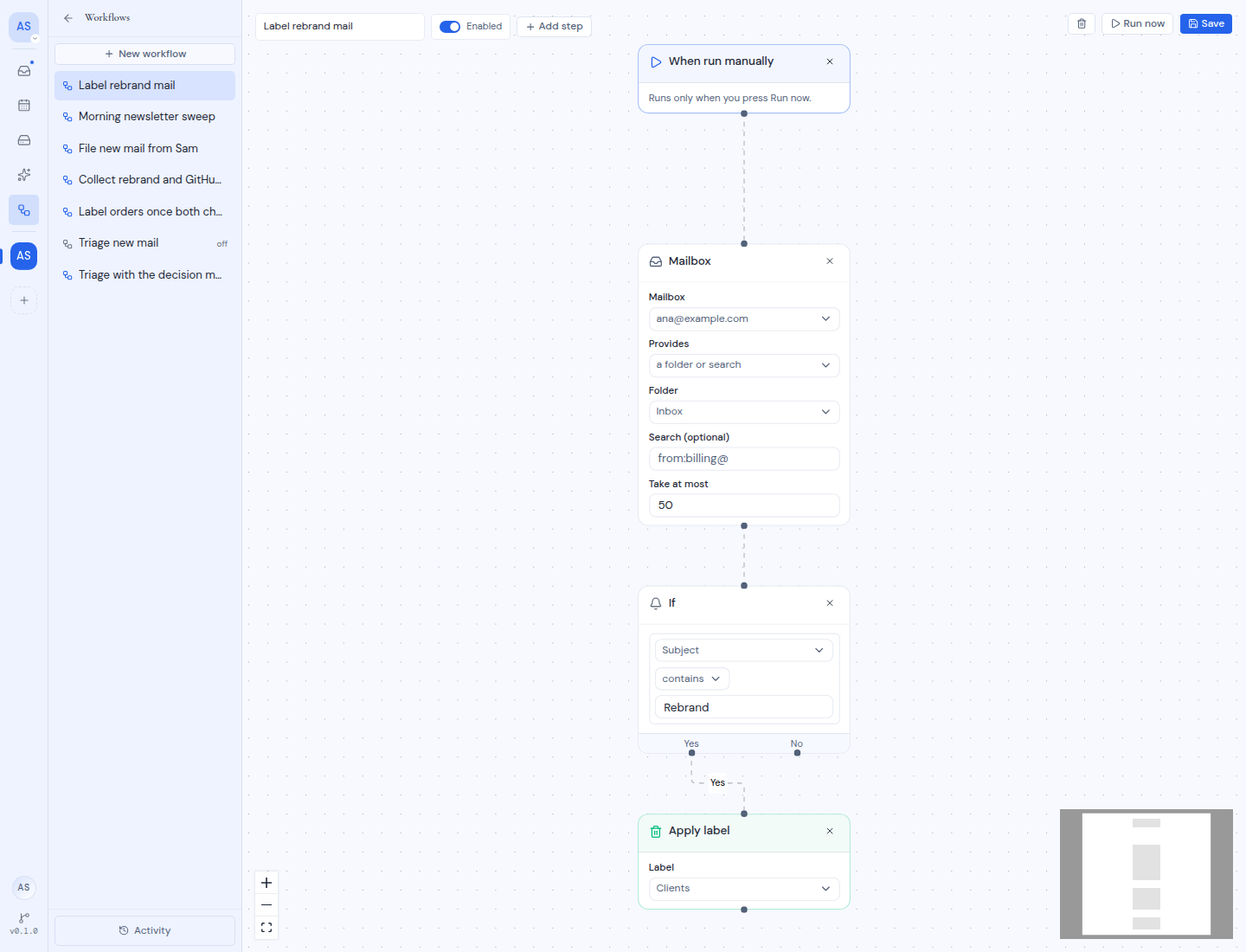
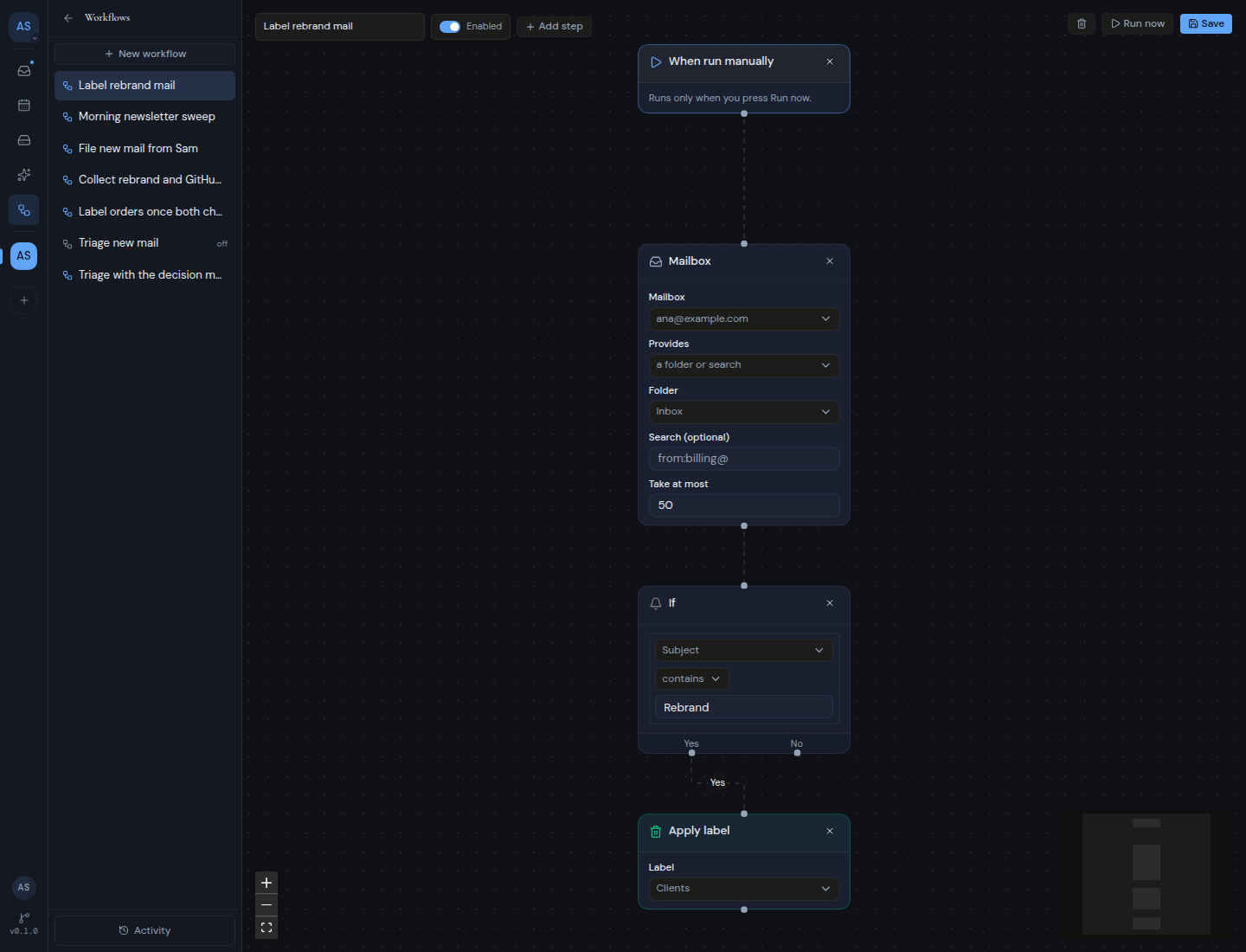
You need at least one mailbox in the workspace to use workflows. On a phone, the sidebar opens as a drawer named Workflows.
A workflow is a chain of steps
Each box on the canvas is a step. Lines between steps are connections. Mail flows down the connections from one step to the next. Every workflow is built from four kinds of steps, and the Add step menu groups them the same way:
| Group | What it does | Examples |
|---|---|---|
| Trigger | Decides when the workflow runs. Every workflow starts with one. | When mail arrives, On a schedule |
| Data | Picks up mail, filters it or joins branches back together. | Mailbox, If, Combine |
| Decisions | Asks an AI model about each message and routes it by the answer. | Ask, Branch |
| Action | Does something to each message that reaches it. | Archive, Star, Apply label |
A typical workflow reads from top to bottom: a trigger, then a Mailbox step that supplies the mail, then an If step that keeps only the messages you care about, then an action. The Steps page describes every step.
A step with more than one output, such as If, shows a label on each connection (for example Yes and No), so you can see which way mail goes.
When a workflow runs
The trigger decides when a workflow runs. There are four triggers:
- When mail arrives runs shortly after new mail lands in one mailbox.
- On a schedule runs at the times you set, for example every weekday at 9:00.
- When run manually runs only when you press Run now.
- Before a message is sent runs each time you send mail, so it can add a BCC address.
See Triggers for the details of each one.
Runs happen in the background on your server. You do not need to keep Metis Suite open. Each run is recorded, and you can see what every step did under Activity. See Run a workflow and check its history.
Who a workflow runs as
A workflow runs as the person who created it. It can only reach mailboxes that person can reach in the workspace. Run details show this person under Runs as. Editing a workflow does not change who it runs as.
If the person who created a workflow leaves the workspace, the workflow can no longer run. Its runs are blocked, and the run details say why.
Who can see and change workflows
Workflows belong to a workspace, and every member of the workspace can use them:
- You see the workflows you created, plus every workflow that only uses mailboxes you can see.
- Any member can create, edit, turn on, turn off and run workflows they can see.
- Only workspace owners and admins can delete a workflow.
Run history follows the same rule. You see runs of workflows that run as you, and runs that only touch mailboxes you can see. Details from a mailbox you cannot see are hidden, and addresses you cannot see read “[hidden address]”.
Every save keeps a version
Each time you save a workflow, Metis Suite keeps that version as a new revision. Each run records the revision it used, so the history always shows the workflow as it was when it ran, even after you change it.
Workflows do not stop to ask you
A workflow never pauses to wait for your approval. Once it is enabled, it acts on every message that matches. Test a new workflow with a narrow condition first, and check its runs under Activity.
The Ask and Branch steps let an AI model make a decision inside a workflow, but that is the model answering questions about each message, not a person approving it. See Let AI decide with Ask and Branch.
Approval does come in when you ask the Workspace Assistant to change your workflows. See Manage workflows.
Other features that run in the background
Schedule send and Snooze in the mail app also run in the background on your server. They are not listed on the Workflows page, and their runs do not appear under Activity. You manage them from your mailbox. See Mail.