Export your data
Download a file with your preferences, workspaces, labels, workflows, assistant chats and security activity, and learn what it leaves out.
You can download a copy of your Metis Suite settings and history. This includes your preferences, workspaces, labels, workflows, Workspace Assistant chats and security activity. You get one file in JSON format (a plain text format that many programs can read).
The export is a copy for you to keep. You cannot import it back into Metis Suite.
It is also not a mailbox archive. Your mail, calendar events and files stay with the provider you connected, such as Gmail or Outlook. To keep a copy of those, export them from the provider.
Download your data
-
Open your user menu (the round button with your initials at the bottom of the left rail).
-
Click Settings. The Account page opens.
-
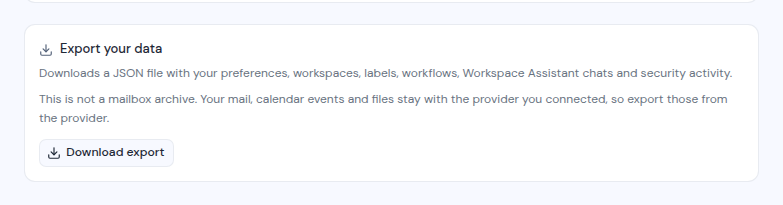
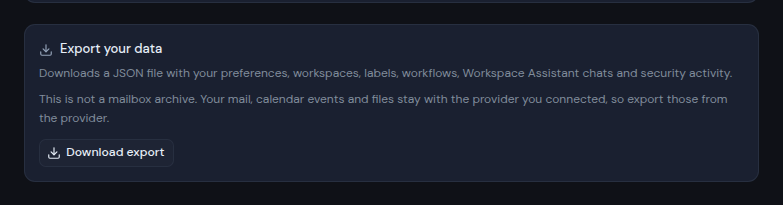
Scroll down to the Export your data card, below Where you’re signed in.
-
Click Download export. While the file is being prepared, the button says Preparing….
-
Your browser saves the file. Its name is
metis-suite-export-followed by the date, for examplemetis-suite-export-2026-10-22.json.
You do not need a code from your authenticator app for this. You can only export your own account.
The date in the file name is the date in UTC (Coordinated Universal Time). Early or late in your day, it can differ from your local date.
What the file holds
| Part | What it contains |
|---|---|
| Account | Your name, your email and the date you created your account. |
| Preferences | Your default workspace and the order of your workspaces. Whether remote images load on their own, whether links are cleaned, and the senders and domains whose images always load. Whether you get sign-in alert emails. See Privacy settings and Sign-in alerts. |
| Workspaces | Every workspace you belong to: its name, its short name from the web address, your role, the date you joined, its AI and phishing detection settings, and its accent color. |
| Mailboxes, calendars and drives | Listed under each workspace: the ones you connected yourself and added to it. Each shows the provider, the account email, the server, its short name, whether it is shared and whether AI is on. A mailbox also shows whether phishing detection is on. A calendar shows which of its calendars the workspace shows. A drive shows its folder restrictions. For calendars and drives, an empty list means nothing is hidden. A mailbox, calendar or drive you have not added to any of your workspaces is not listed here. |
| Labels | For each mailbox you connected: every custom label on it (name, color and date), including ones other members made. Also every label put on a message, with who put it there (AI, a person or the email provider), how sure the AI was, and when. |
| Workflows | Every workflow that runs as you: its workspace, name, whether it is on, its dates and all of its steps. It also lists the email address of each mailbox the workflow uses. Workflows you deleted are not included. |
| Workspace Assistant chats | Every chat you had with the assistant: its workspace, title, dates and all its messages. Chats from a workspace you have left are included too. |
| Security activity | Every change listed in your Security activity, not only the 50 newest. Each one has its date and time, the action (a short code such as workspace_invite.revoked), how it was made (app, assistant or mcp), who made it, the workspace’s name, what it was about, whether it was a mailbox, calendar or drive, any extra details, the IP address, and the full browser description. |
Near the top, the file also has a short note that says it is not a mailbox archive, and the date and time of the export.
What the file leaves out
Among other things, the file leaves out:
- Your mail, calendar events and files. They stay with your provider. Export them there.
- Your password, sign-in details, two-factor secrets and backup codes.
- Scheduled sends and snoozes.
- Workflow run history.
- Muted conversations and Read later.
- Saved searches.
- Pinned drive folders.
- Senders you unsubscribed from.
- Invitations you sent. The security activity only records when you sent or revoked them.
- Thread summaries and phishing check results.
- MCP clients. The security activity only records when you added, approved or turned on a client, and when you turned on its sensitive tools.
What another member connected
Your export holds only the mailboxes, calendars and drives you connected yourself. A mailbox that another member connected and shared with you belongs to that member. The mailbox and its labels are in their export, not in yours. The same goes for calendars and drives.
If the download does not work
- If you see “Too many exports. Try again in a few minutes.”, wait a few minutes and click Download export again. You can download up to 5 exports every 10 minutes.
- If something else goes wrong, the card shows what happened, or “Could not export your data”. Try again later.
Before you delete your account, download an export so you keep a copy.