Ask for approval
Make a workflow wait until a person approves or denies, and answer the requests waiting for you.
An Ask for approval step pauses a run until a person decides. Use it before a step you do not want to happen on its own, such as sending a reply that AI wrote. While the run waits, its status is waiting.
Add an approval step
- Open the workflow and add Ask for approval from the Waits and flow category of the step palette.
- Connect the step before it to its input.
- Click the step and fill in its settings in the Inspector:
- Approvers: tick the workspace members who may answer. The list shows each member’s name and email address. You need at least one. Until you pick someone, the card says “Pick who approves”.
- Request: the text the approvers read. You can include values from earlier steps, for example
Send this reply? {{ item.text }}. See Expressions. - Deadline and Unit: how long to wait for an answer. It starts at 3 days.
- Connect the outputs you need:
- Approved: an approver approved.
- Denied: an approver denied.
- No answer: the deadline passed without an answer.
- Save the workflow.
The card says “Asks” and the names of the approvers.
Steps after the approval can read the answer: the decision (decision), who decided (decidedBy), their note (note) and when (decidedAt).
When AI decides who receives a message or an invitation, or where a file goes, the editor asks for an Ask for approval step before the step that acts. See Steps.
In a test run, the approval step does not wait. It reports “would ask for approval; a test run goes on through Approved”, and the test carries on through Approved. See Test a workflow.
Answer a request
Requests appear in the app, under Approvals.
- Click Workflows in the left rail.
- Click Approvals at the bottom of the workflow list. A number on the button shows how many requests are waiting for you.
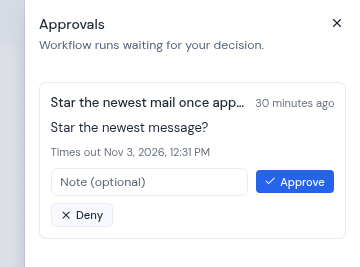
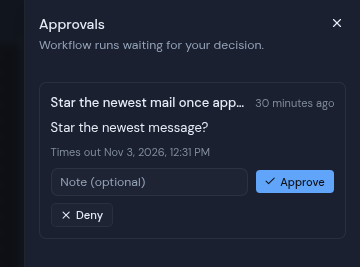
- The Approvals panel opens: “Workflow runs waiting for your decision.” Each request shows:
- the workflow’s name, which opens the run;
- how long ago it was asked;
- the request text;
- when it times out, for example “Times out” and a date;
- a “Note (optional)” field, for up to 500 characters.
- Type a note if you want, then click Approve or Deny. A message confirms “Approved” or “Denied”.
If nothing is waiting, the panel says “Nothing is waiting for you.”
You can also answer from the run itself: in the Waits section of the run details, or in the Runs tab under the canvas when you select the run. See Run a workflow and check its history.
Who can answer
- Only the approvers picked in the step can answer. Anyone else sees “You are not one of the people asked to approve this”.
- The first answer decides. Once a request is closed, for example because someone already answered it, it timed out or its run was cancelled, you see “Someone already answered this request”.
- If the request no longer exists, you see “That request is gone”.
Your note and your name are recorded with the run. The run details show “Approved by” or “Denied by” and the name.
To stop a run that is waiting for approval without answering, cancel it. See Cancel and retry runs.