Start a workflow from a webhook
Let another service start a workflow by sending it a request, and check who is allowed to send one.
A webhook is a web address that another service calls when something happens, for example a form tool when someone fills in a form, or your own script. A workflow that starts with a Webhook trigger runs each time its address receives a valid request. The request’s body becomes the run’s input.
Set up the trigger
- Open the workflow and add Webhook from the Triggers category of the step palette.
- Click the trigger and choose its settings in the Inspector:
- Body fields (optional): the fields you expect in the request’s body. Each has a name, a Type, an optional description and a Required checkbox. See Declared fields.
- Check: how a request proves it comes from you. Secret header (the default) or HMAC signature. See Send a request.
- Only from these IPs (optional): the addresses allowed to call, as single addresses or ranges such as
203.0.113.0/24. “Leave empty to accept any address.” - Required headers (optional): up to 10 headers that a request must carry, each with its name and its required value.
- Connect the steps that should run, and save the workflow.
Before the first save, the Inspector says “Save the workflow to get the address this trigger listens on.” After you save, it shows the webhook address in a read-only field.
The card says “Checked by a secret header” or “Signed with HMAC”, plus “From” and the allowed addresses when you set them.
Copy the address and the secret
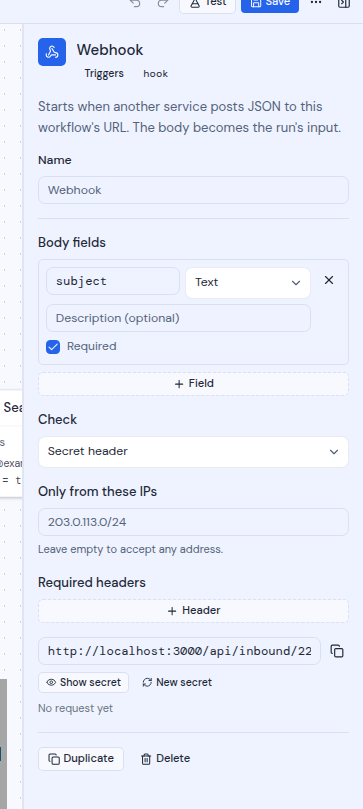
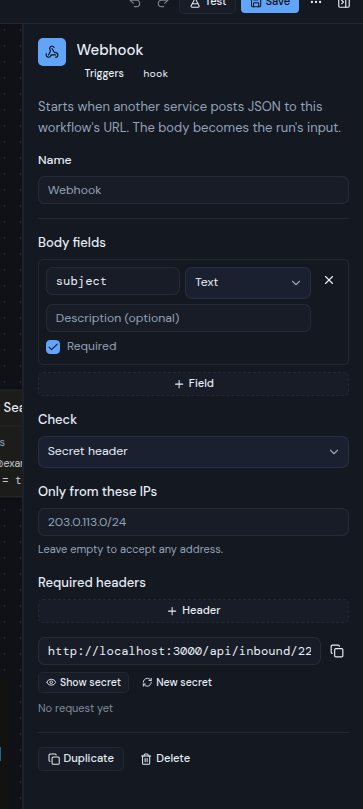
- Click the trigger.
- Click the copy button next to the address field. A message says “Address copied”.
- Click Show secret to see the secret, then click the copy button next to the secret field. A message says “Secret copied”.
- Enter the address and the secret in the other service.
Only the person who created the workflow and workspace owners and admins can see the secret or make a new one. Anyone else sees “Only the workflow’s owner or an admin can see its webhook secret”.
The secret stays the same when you save the workflow again. To replace it, for example if it leaked, click New secret. A message says “New secret made; the old one stops working now”. Update the other service straight away.
Under the buttons, a line shows “No request yet”, or “Last request” and how long ago. If the last request was refused, the reason follows, for example “A request was refused: wrong secret or signature”.
Send a request
Send an HTTP POST to the webhook address, with a JSON body of up to 256 KB. Prove the request comes from you in one of two ways, depending on Check:
- Secret header: send the secret in the
X-Metis-Webhook-Secretheader. - HMAC signature: send
X-Metis-Signaturewith an HMAC-SHA256 of the exact body, keyed with the secret, written in hexadecimal. Asha256=prefix is also accepted.
For example, with Secret header:
curl -X POST "https://mail.example.com/api/inbound/your-webhook-id" \
  -H "Content-Type: application/json" \
  -H "X-Metis-Webhook-Secret: your-secret" \
  -d '{"email": "ada@example.com", "topic": "Billing"}'
Use the address you copied from the trigger. The one above is an example.
To avoid starting the same run twice when a service sends a request again, add an Idempotency-Key header. Only the first 200 characters of the key count. A second request with the same key does not start another run.
Each webhook takes up to 120 requests a minute.
What the run sees
| Value | What it holds |
|---|---|
trigger.body |
The body. With Body fields declared, only those fields are kept. Without them, the whole body is kept. |
trigger.headers |
The request’s headers, up to 30, with lower-case names. The secret, the signature, Authorization and Cookie headers are left out. |
trigger.receivedAt |
When the request arrived. |
For example, trigger.body.email reads the email field of the body. See Expressions.
Answers
The address answers with JSON. A refused request gets an error message.
| Code | Meaning |
|---|---|
202 |
Accepted. The answer includes accepted and the runId of the new run. |
400 |
“The body is not JSON”, or a required body field is missing: “The body is missing” and the field’s name. |
401 |
“Wrong secret or signature” |
403 |
“Not allowed from this address” or “A required header is missing or wrong” |
404 |
“This webhook is not accepting events” (the workflow is turned off or deleted), or “Unknown endpoint” |
413 |
“The body is larger than 256 KB” |
429 |
“Too many requests” |
500 |
“The event could not be recorded” |
Good to know
- The workflow has to be on. A turned-off or deleted workflow answers
404. A deleted workflow’s address stops working for good. - The address comes from your server. Your administrator decides which address the server uses for webhooks. If the other service cannot reach the address, ask your administrator. See Background work.
- Address rules behind a proxy. Only from these IPs checks the address the request came from. If your server sits behind a proxy, your administrator sets which proxies to trust. If your server cannot tell the address a request came from, a webhook with Only from these IPs refuses it with “Not allowed from this address”.
- Test without a request. Test can run the workflow with inputs you fill in, or with a body you paste. See Test a workflow.