Contacts AI
Open the Contacts AI panel to ask questions about your contacts and let the assistant change them, with your approval.
Contacts AI is a chat panel beside your contacts. You can ask it about the people in your address books, and ask it to add, change or delete contacts for you. This page covers how to open it from Contacts. For how chats, approvals and AI settings work in general, see AI assistant.
Open Contacts AI
Click the Contacts AI button (the robot icon) in the Contacts header. Click it again, or click Close assistant, to close the panel.
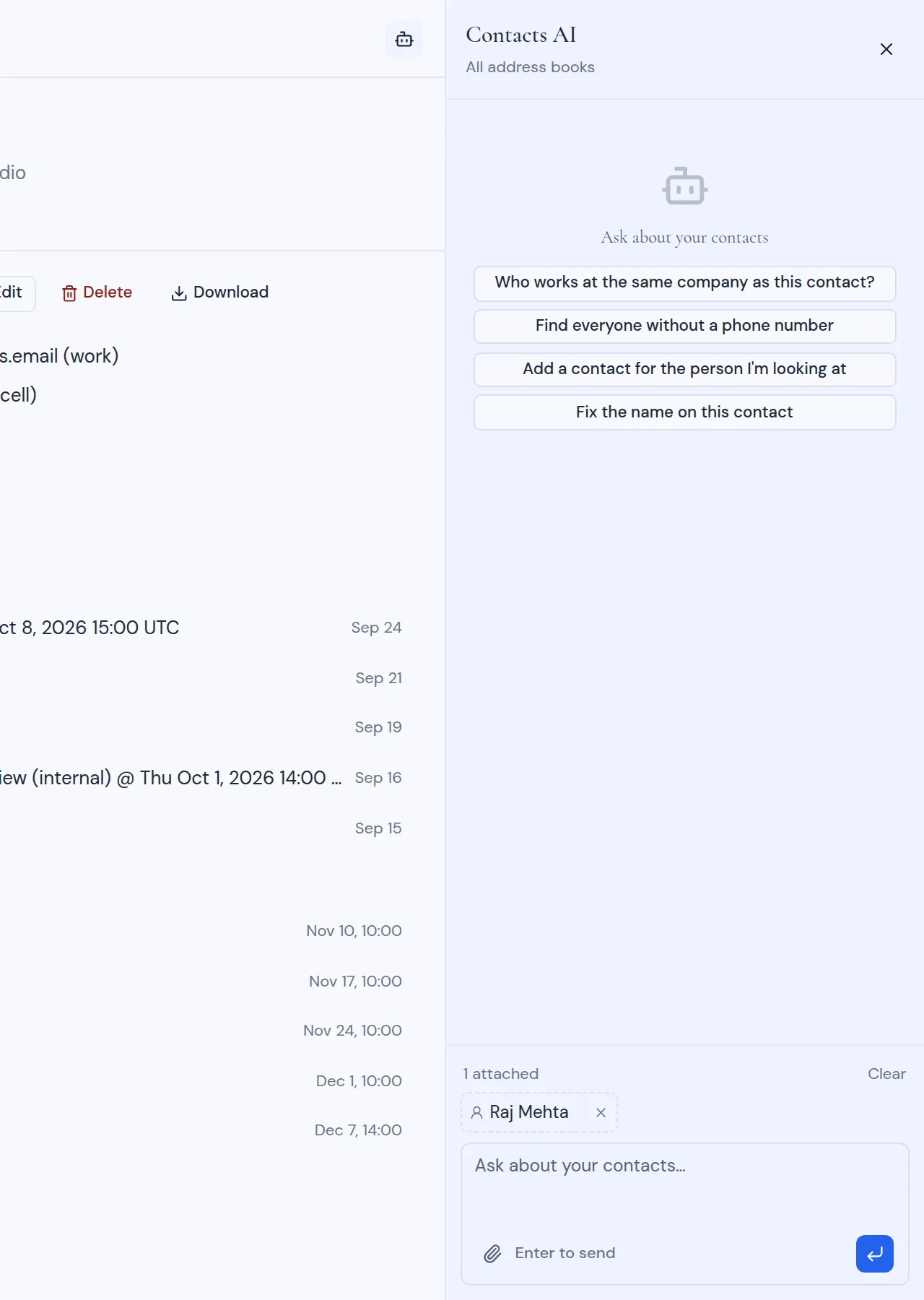
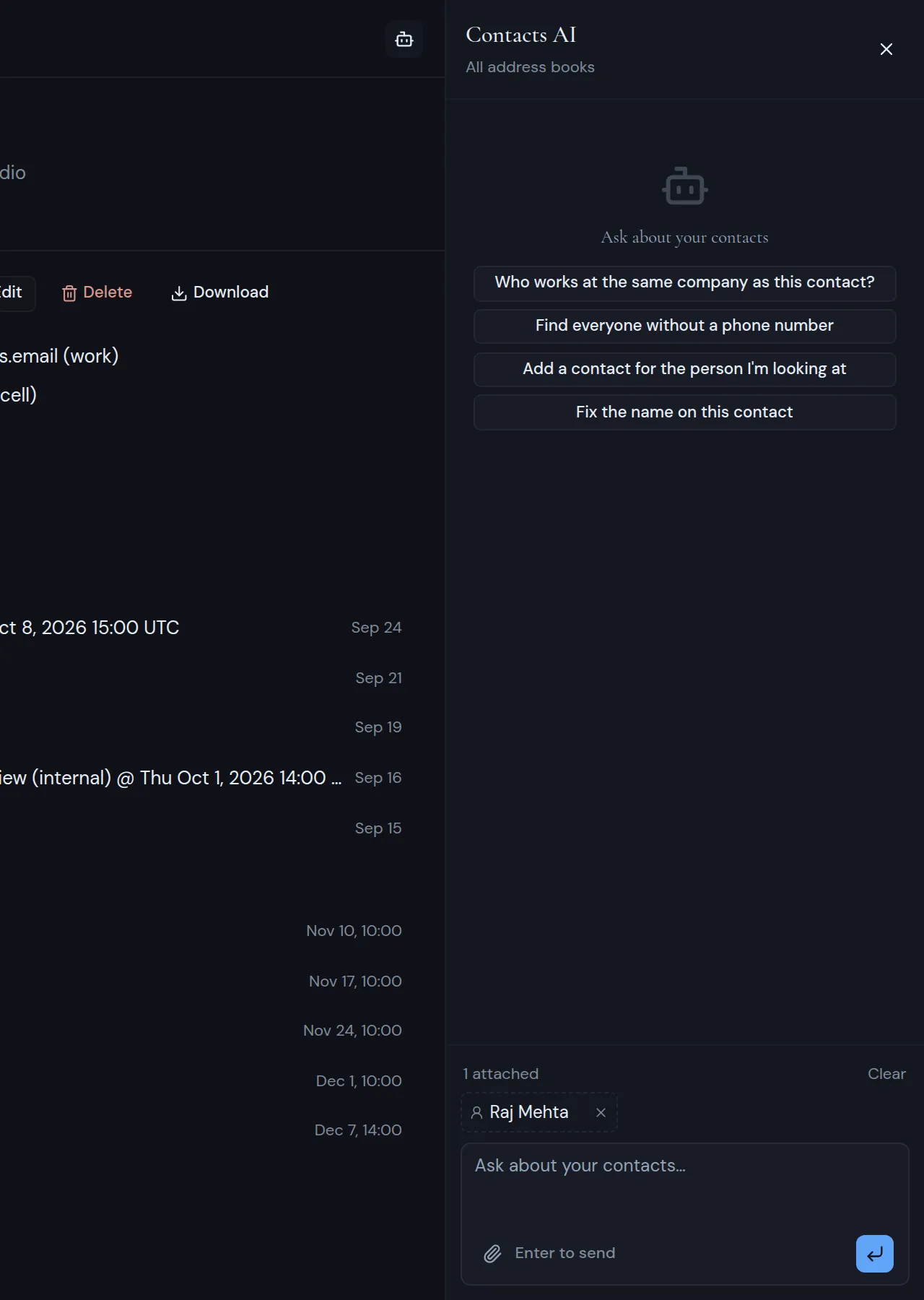
Under the panel title, “All address books” or “This address book” tells you which address books the assistant works with. It matches what you picked in the Switch address book menu.
You see the Contacts AI button only when AI is available on your Metis Suite instance.
Ask a question
A new chat says “Ask about your contacts” and offers suggestions such as “Who works at the same company as this contact?” and “Find everyone without a phone number”. Click one, or type your own question in the box (“Ask about your contacts…”) and press Enter.
Point the assistant at a contact
The contact you have open is attached on its own, shown as a chip with a dashed outline.
- To keep it attached when you open another contact, click the pin icon on its chip (Keep attached while you browse).
- To attach another contact, click Attach a contact (the paperclip) and pick from the contacts in the list. When the list has no contacts, the button is turned off.
- To take a contact off, click the cross on its chip. Clear removes them all.
- Click a chip to open that contact.
If something goes wrong, the panel says “Contacts AI hit a problem” with a Retry button.
The chat is not saved. When you close the panel or leave the page, the next conversation starts fresh. Contacts AI shares your message limit with the Mail AI, Calendar AI and Drive AI panels.
What it can do
Contacts AI can list your address books and their groups, search your contacts and open one in full. It can also create a contact, change one or delete one.
Before it changes anything, it asks you to approve the change. The card says, for example, “Approve saving” and the person’s name, “Approve changing” and what changes, or “Approve deleting” and the contact, with a warning that it cannot be undone. While it works, you see a line such as “Saving” with the name, then “Saved” when it is done. See Approve or decline actions.
When Contacts AI is turned off
AI is off for each address book until someone turns it on. The person who connected the account can turn it on in the workspace’s contacts settings. Metis Suite asks for a code from their authenticator app first. See Turn AI on or off for an address book.
While AI is off, the panel says “Assistant turned off”, then the reason and a button:
- “This workspace has AI turned off, so the assistant is unavailable here.” The button is Workspace settings.
- “AI is turned off for this address book, so the assistant has nothing it can read.” The button is Your address books.
Your address books opens your account’s list of address books. Click In 1 workspace (or the number of workspaces) to turn AI on for this workspace. You can also use the workspace’s Contacts settings.
Contacts AI reaches only the address books that have AI turned on in this workspace.