Save contacts from mail
Save the people in your email to an address book, open a contact you already saved, and see where saved contacts show up.
You do not have to type a contact in by hand. When you read an email, you can save its sender or anyone it was sent to in a few clicks.
Save a person from an email
In an open email, each person is clickable: the sender’s picture, the sender’s name and address, and each person in the To and Cc lists once you click the To: line to show them. A name or address is underlined when you point at it. Click one to open its menu, just below it.
The menu has, in order:
- Open contact, when the address is already in one of the address books the workspace shows. It opens that contact in Contacts. Otherwise the first item is Add to contacts, which saves the person (see below).
- Email, which opens a new message to them.
- Invite to an event.
- Search everything with and their name, or their address when the email shows no name.
- Copy email. You see “Copied”, or “Could not copy” if it did not work.
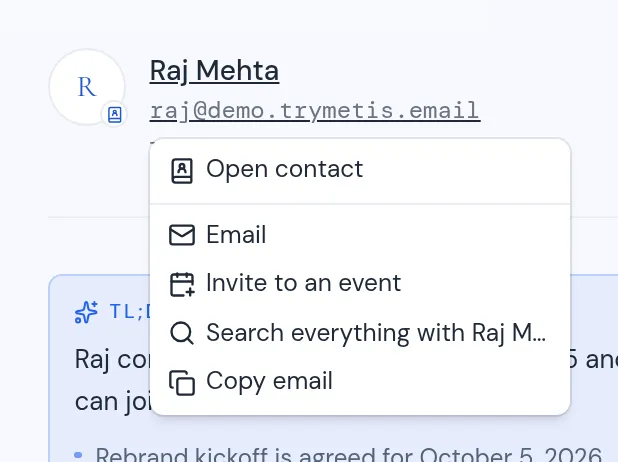
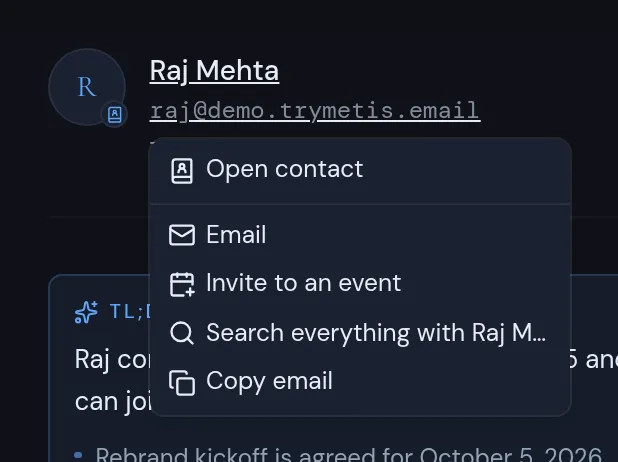
You can tell who is saved already. A saved sender’s picture has a small round book badge, and a saved To or Cc person has a small book icon after their name.
To save someone:
- Click the person, then click Add to contacts. The Save contact dialog opens: “Pick the address book to save this contact to.”
- Click the address book to save to. Each one shows its name and its account’s email address. Read-only address books are not listed. If there is only one, it is already picked.
- Click Save.
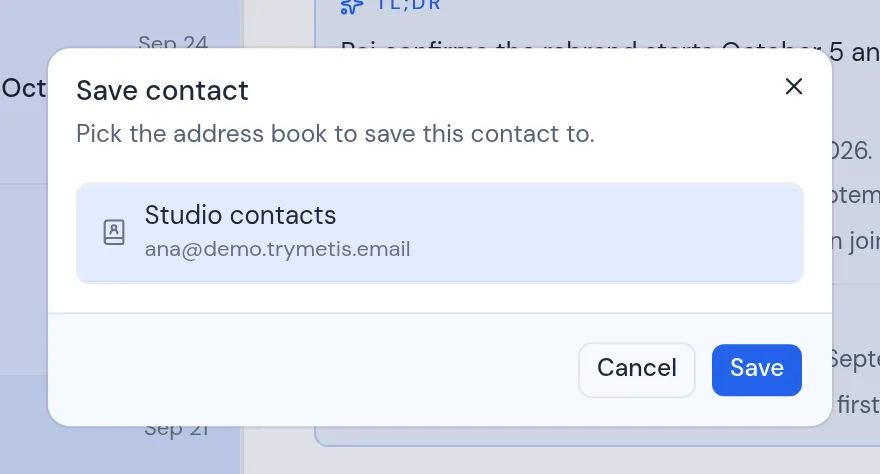
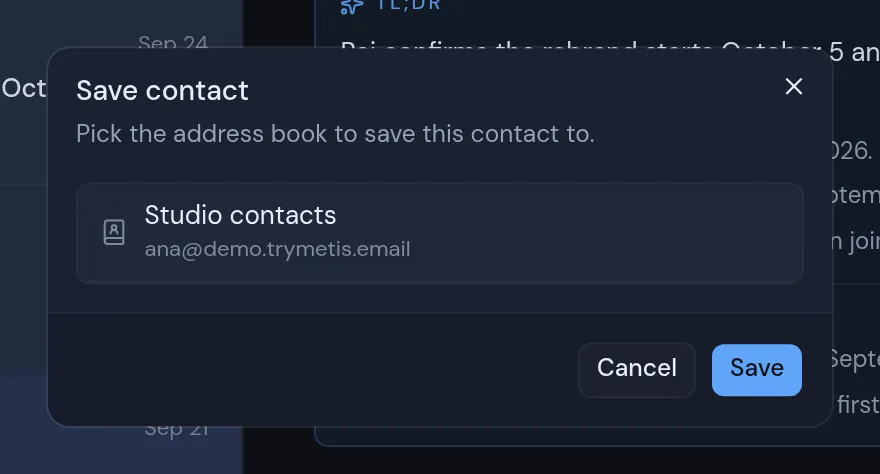
You see “Saved to” and the address book’s name. The new contact has the email address, and the name from the email when the email shows one. To add more details, click Edit in that notice. The contact opens with the Edit contact dialog ready. See Create, edit and delete contacts.
If the save fails, you see the error, or “Could not save the contact”.
When the dialog lists no address book
- “This workspace has no address book yet.” Add one first. See Add an address book.
- “No address book is showing in this workspace yet.” The workspace has an address book account, but none of its address books are switched on. See Show and hide address books.
Both messages have a Contacts settings link that opens the workspace’s contacts settings.
Save a contact from the summary card
When AI is on for a mailbox, cards above a conversation summarize it. A message about a person can get a Contact card. See AI help in mail.
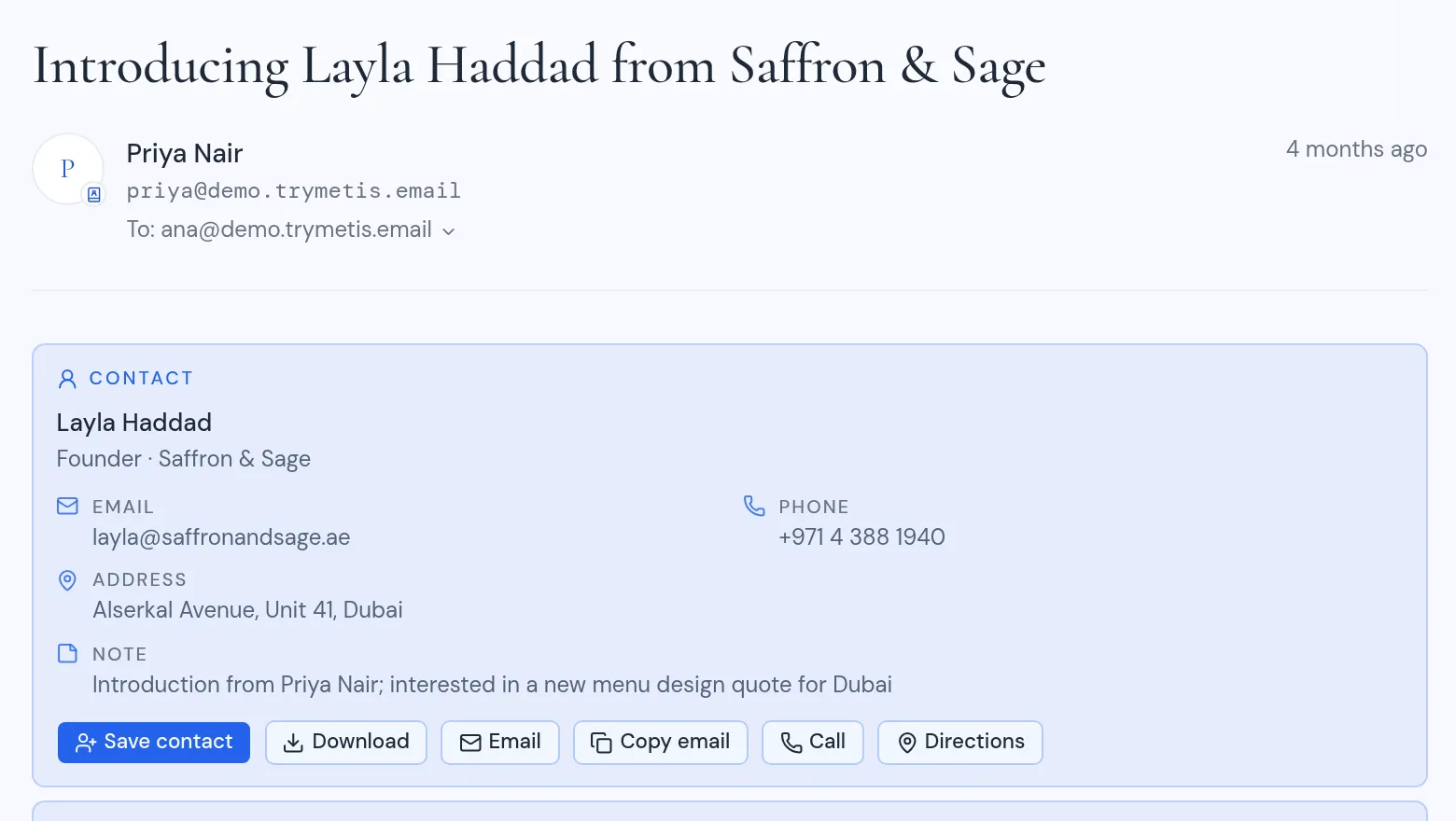
- Save contact opens the same Save contact dialog. The new contact gets everything the card found: the name, organization, job title, email addresses, phone numbers, addresses, website and note.
- Open contact shows instead when someone already saved that email address in this workspace.
- Download saves the contact as a
.vcffile you can import somewhere else.
Where your saved contacts show up
Once a person is saved, Metis Suite uses the contact in more places:
- Writing an email. When you type in To, Cc or Bcc, saved contacts come first in the suggestions, then people from your recent mail. See Compose and send.
- Workspace search. Saved contacts come first among people, and a saved contact has an Open contact action. You can also find a saved contact by phone number or organization, for example with
organization:and a company name. See Results and actions. - Workspace AI. Type @ and a few letters of a name to point the assistant at a contact. See Use Workspace AI.
When you write an email, only contacts with an email address show up. Workspace search results also show saved contacts without one.
The Add to contacts and Open contact menu items look at every address book the workspace shows, whether or not AI is on for it. Every member of the workspace can save contacts this way.